Adding a WhatsApp chat widget to your Wix site takes just a few minutes and requires no coding. Once installed, visitors can contact you instantly via WhatsApp from any page of your website.
Before you begin, make sure you've created your widget and copied the installation code from your WApp Chat dashboard
Step-by-step guide for getting the code of the Wapp Chat widget
Choose How You Want to Display the Widget
Install to the single page
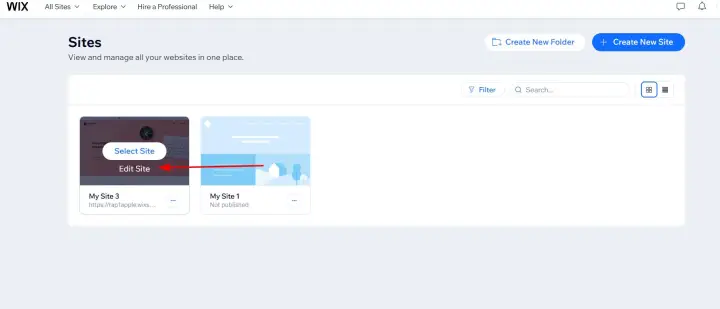
Log in to your Wix account.
Select the site you want to edit and click Edit Site to open the Wix Editor.
Step 1: Open the Wix Editor
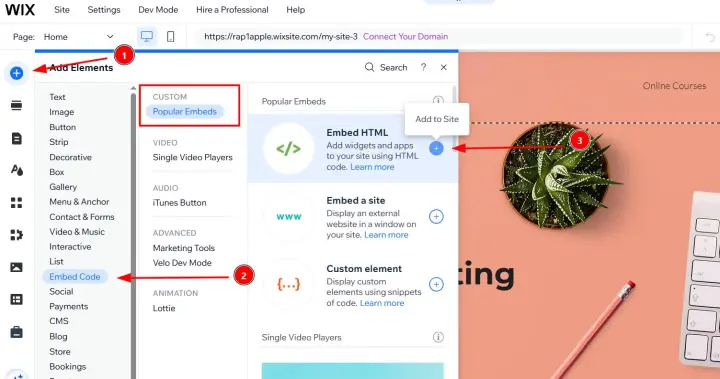
In the left sidebar, click the + (Add Elements) button.
Go to:
Embed Code → Embed HTML
This adds a custom HTML container to your page
Step 2: Add an HTML Embed Element
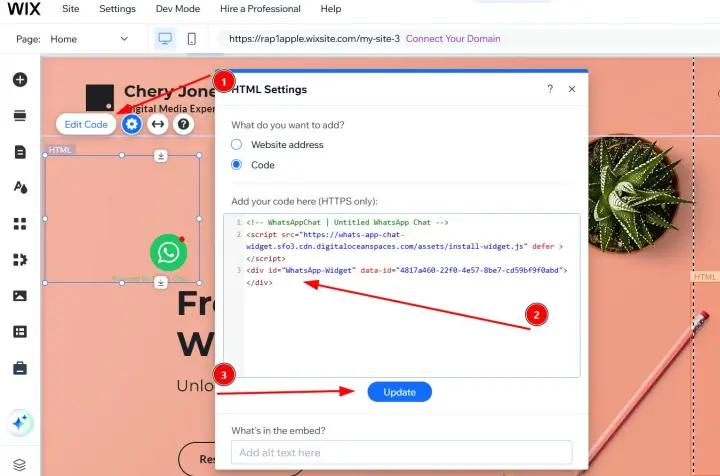
Click Enter Code inside the HTML box.
Paste your WApp Chat installation code into the pop-up window and click Update.
Step 3: Paste Your Widget Code
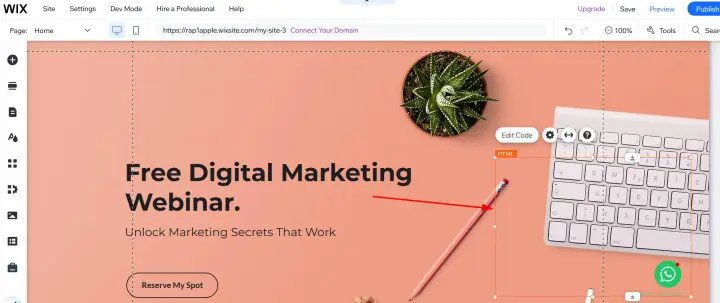
Drag the HTML container to any location on the page.
You can resize it by dragging its corners.
💡 Tip: For floating chat buttons, the container's position inside the editor does not affect the final on-screen placement.
Step 4: Position the Widget Container
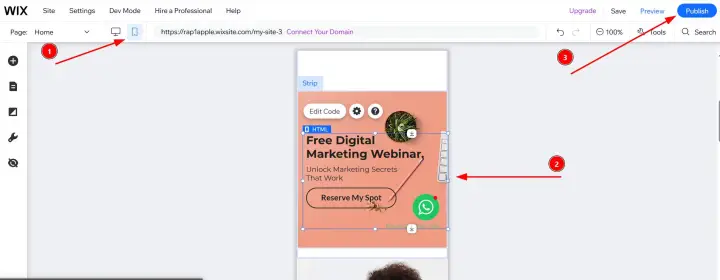
Click the Mobile icon at the top of the editor to switch to mobile view.
Adjust the container if needed for smaller screens.
When everything looks right, click Publish.
Step 5: Check Mobile View and Publish
Install to the All pages
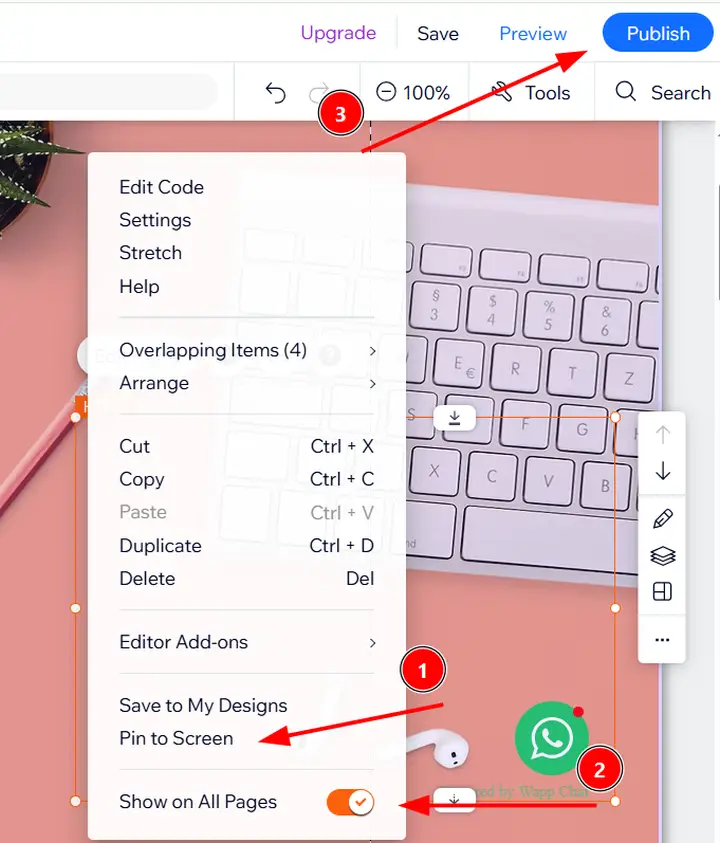
If you want the widget to appear across your entire site:
1: Right-click the HTML container
2: Select Pin to Screen
3: Enable Show on All Pages
4: Click Publish
Select show on all pages in the menu
You're All Set 🎉
Your WhatsApp chat widget is now live on your Wix website. Visitors can contact you instantly - from desktop or mobile.
You can update the widget's design, behavior, or message anytime in your WApp Chat dashboard.
Need help? Our support team is always happy to assist.
support@wapp-chat-widget.com