Adding a WhatsApp chat widget to your website only takes a few minutes and requires minimal technical knowledge. Once installed, visitors will be able to contact you instantly through WhatsApp from any page of your site. This guide works for most website platforms that allow you to edit HTML or insert custom code.
Before you begin, make sure you've created your widget and copied the installation code from your WApp Chat dashboard
Step-by-step guide for getting the code of the Wapp Chat widget
Choose Where You Want the Widget to Appear
Install to the single page
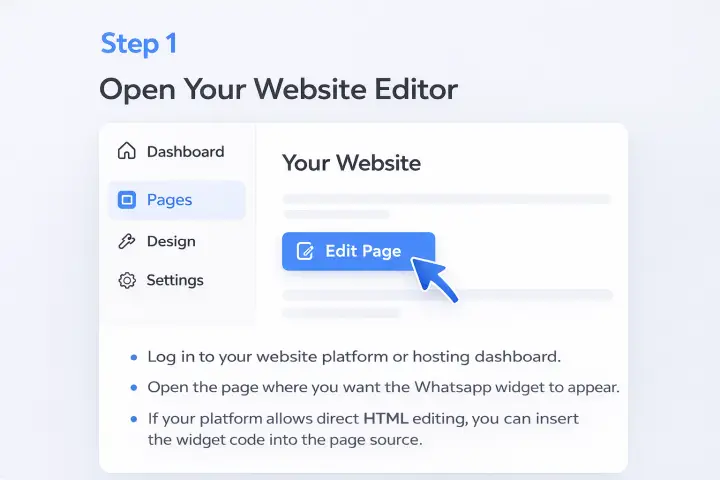
Log in to your website platform or hosting dashboard.
Open the page where you want the WhatsApp widget to appear.
This could be done through a page editor, theme editor, or HTML editor depending on your platform.
Step 1: Open Your Website Editor
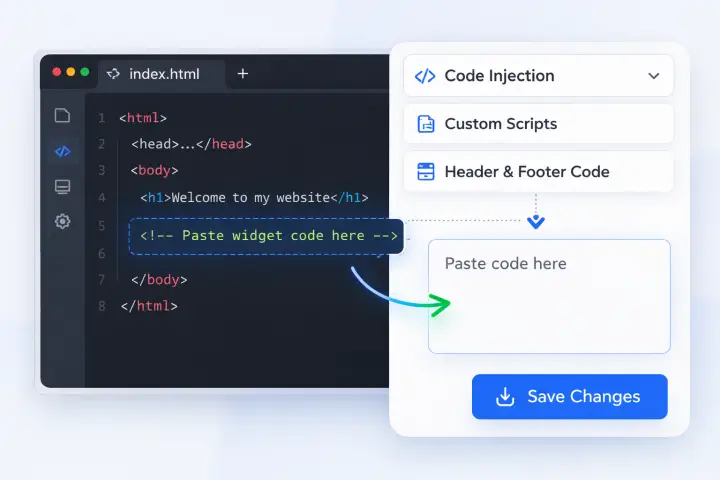
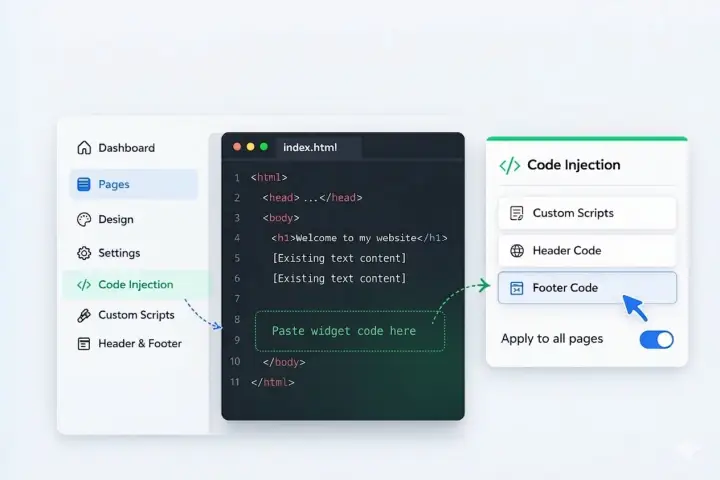
Locate the HTML editor of your page or look for a section called Code Injection, Custom Scripts, or Header & Footer Code.
Some platforms allow you to edit the page HTML directly, while others provide a code injection feature for adding custom scripts.
Use whichever option your platform provides to insert the widget installation code.
Step 2: Locate the HTML Source of the Page
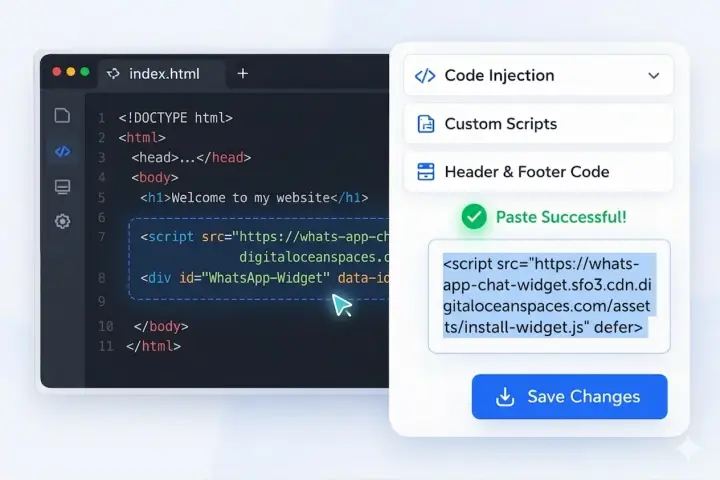
Copy the WhatsApp widget installation code from your WApp Chat dashboard.
Paste the code into the HTML editor of your page.
For best results, place the code near the end of the page before the closing </body> tag.
Step 3: Paste Your Widget Installation Code
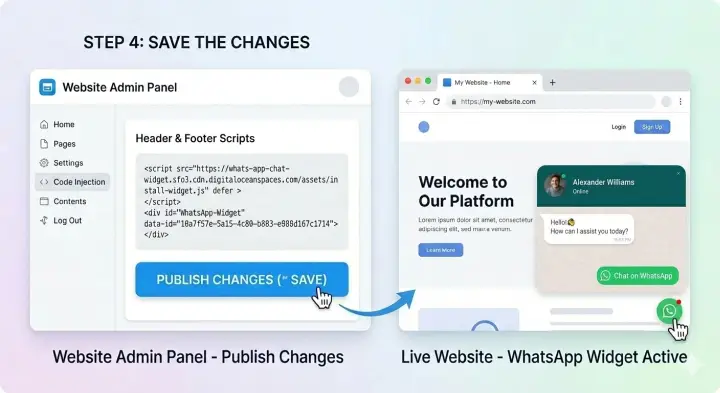
Click Save, Update, or Publish depending on your platform.
The widget code will now be added to the page.
Open your website in a new browser tab.
You should now see the WhatsApp chat widget displayed on the page.
If it doesn't appear immediately, try refreshing the page or clearing your browser cache.
Step 4: Save the Changes
Install to the All pages
If you want the widget to appear on every page of your website:
Open your website's main template or layout file.
This file is often called footer, layout, or theme template.
Paste the code into the editor.
Save the changes and publish your website.
The widget will now appear on every page of your site.
Add the Widget Code to Your Global Template
You're All Set 🎉
Your WhatsApp chat widget is now active on your website.
You can update the widget's design, behavior, or message anytime in your WApp Chat dashboard.
Need help? Our support team is always happy to assist.
support@wapp-chat-widget.com