Adding a WhatsApp chat widget to your WordPress website only takes a few minutes. Once installed, visitors will be able to contact you instantly through WhatsApp from your site. This guide explains how to install the widget using a small custom plugin and how to display it either on a single page or across your entire website.
Before you begin, make sure you've created your widget and copied the installation code from your WApp Chat dashboard
Step-by-step guide for getting the code of the Wapp Chat widget
Choose How You Want to Display the Widget
Install to the single page
This plugin loads the widget script on your website.
Use this link to download (WhatsApp-Widget.zip). If you choose to download the ready-made plugin, skip the next step and continue with Step 3.
Step 1: Download the Widget Loader Plugin
Log in to your WordPress dashboard.
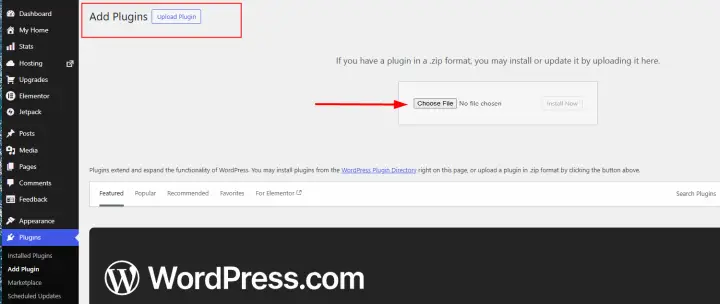
Go to Plugins → Add New.
Click Upload Plugin and select your ZIP file.
Install and activate the plugin.
This will load the WhatsApp widget script on your website.
Step 2: Upload the Plugin to WordPress
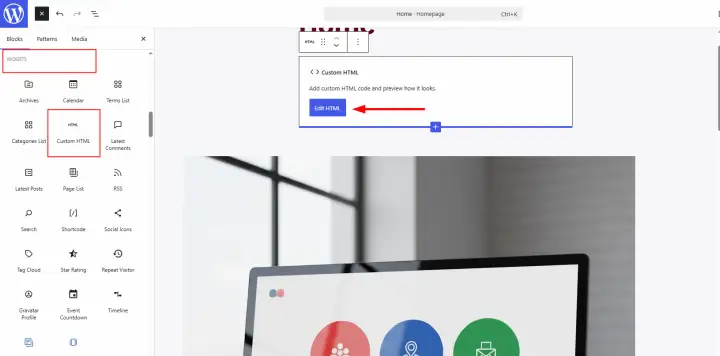
Open the page where you want the widget to appear.
Add a Custom HTML block in the WordPress editor.
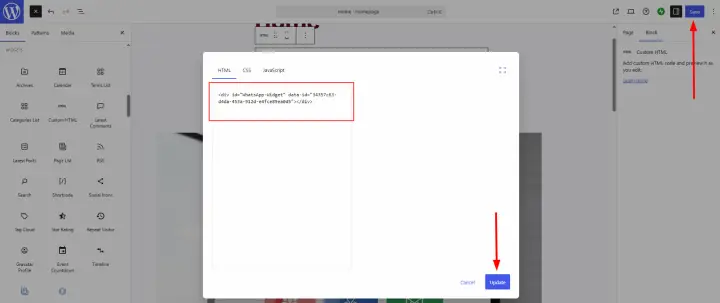
Paste the following widget container:
<div id="WhatsApp-Widget" data-id="YOUR_WIDGET_ID"></div>
This Widget will only appear on the page where you place it.
Step 3: Add the Widget Container to a Page
Click Update or Publish.
Open the page on your website to verify that the widget appears correctly.
Step 4: Update or Publish the Page
Install to the All pages
If you want the widget to appear on every page of your WordPress site:
First, you need to follow the instructions in step 1 - step 2 of the installation script on a single page.
Step 1: Upload the WhatsApp Chat Widget Loader Plugin to WordPress
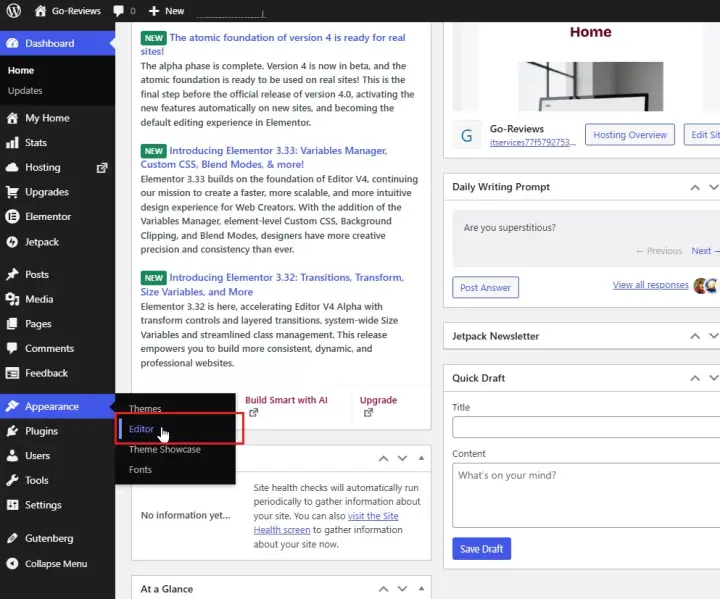
Open the theme files of your website.
You can find it in the navigation bar > Appearance > Editor.
Step 2: Open the theme files Editor
Locate either the header or footer file.
These files are loaded on every page of your website.
Step 3: Find the layout files of your theme
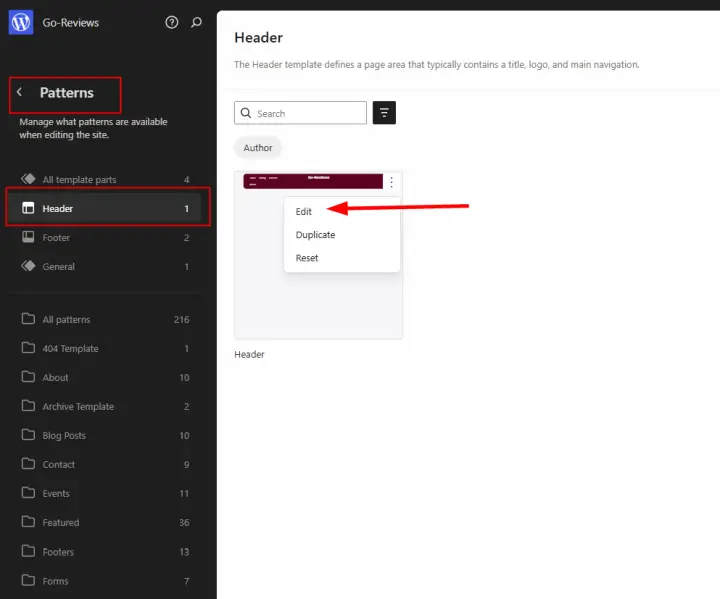
Paste the widget container inside one of these files:
<div id="WhatsApp-Widget" data-id="YOUR_WIDGET_ID"></div>
Step 4: Add the widget
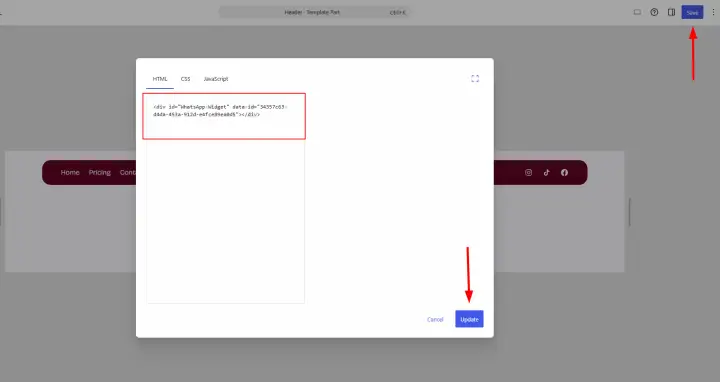
Save the changes.
Open the page on your website to verify that the widget appears correctly.
Step 5: Publish the changes
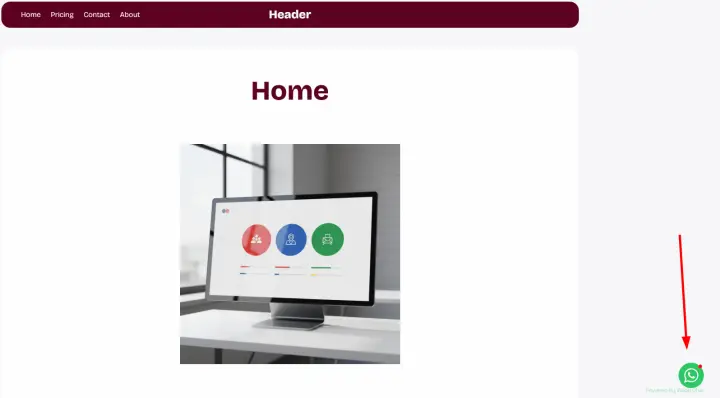
You're All Set 🎉
Your WhatsApp chat widget is now active on your WordPress website.
Visitors can contact you instantly through WhatsApp from desktop or mobile devices.
You can customize the widget's design, greeting message, and behavior anytime in your WApp Chat dashboard.
support@wapp-chat-widget.com