If you want more website visitors to actually reach out, not just browse and leave, adding WhatsApp chat is one of the quickest wins you can make.
That is really what most people mean when they search how to embed WhatsApp chat on a website. They are not looking for a long technical explanation. They want a simple way to make their site feel more responsive, easier to contact, and better at turning high-intent traffic into real conversations.
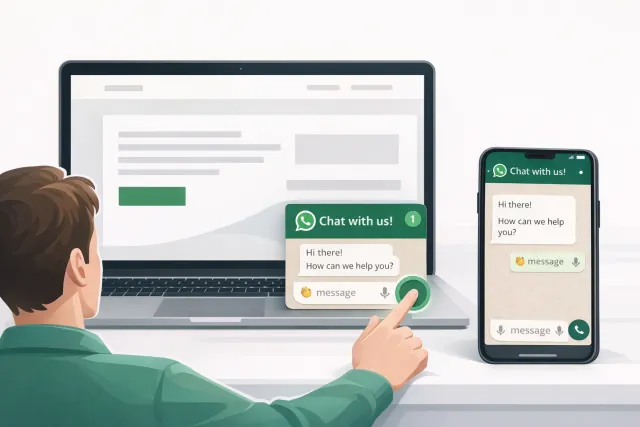
For a lot of businesses, this matters more than it sounds at first.
A visitor might be ready to ask about pricing, shipping, setup, availability, or custom work. If the only next step is a long contact form, you lose some of that momentum. A WhatsApp chat option gives people a faster, more familiar path.
In this guide, we will cover the simplest ways to add WhatsApp to your website, explain the difference between a basic link and a proper widget, and show you how to set it up with WApp Chat without getting buried in code.
What does it mean to embed WhatsApp chat on a website
Strictly speaking, the actual chat usually opens in WhatsApp or WhatsApp Web. What you embed on the page is the entry point to that conversation.
That entry point can be:
- a plain text link;
- a WhatsApp button;
- a floating chat bubble;
- a branded widget with welcome text, design settings, and a clearer call to action.
That distinction matters.
A basic link technically works, but it is easy to miss. A floating widget is more visible, feels more polished, and usually does a better job of catching people right when they are ready to ask a question.
Why add WhatsApp chat to your website?
Visitors can reach you faster
When someone has one last question before buying, speed matters. A WhatsApp widget lets them message you right away instead of switching tabs, hunting for an email address, or filling out a form they may never submit.
Your site feels more approachable
A visible chat option signals that there is an actual team behind the website. That sounds small, but it can make a real difference for trust, especially on product pages, service pages, and pricing pages.
It works well for mobile traffic
On mobile, WhatsApp already feels native to the way people communicate. The path from “I have a question” to “I sent a message” is pretty straightforward.
It helps recover high-intent leads
Sometimes a visitor is interested but not fully sold yet. They just need a quick answer. A shipping detail, a pricing clarification, a feature question. If you can answer in the moment, that bounce can turn into a conversation.
Small teams can support users without extra complexity
Not every business wants to build out a full support stack on day one. WhatsApp can be a practical channel for sales questions, support requests, and pre-purchase conversations without adding a lot of operational overhead.
Ways to embed WhatsApp chat on a website
There are a few different ways to do this. The right one depends on how visible and polished you want the experience to be.
Method 1: Add a simple WhatsApp link
This is the fastest and most bare-bones option.
You create a click-to-chat link that opens a conversation with your number.
<a href="https://wa.me/15551234567?text=Hi%20there%2C%20I%27m%20interested%20in%20your%20services" target="_blank" rel="noopener"> Chat with us on WhatsApp </a>
This approach can work well inside:
- a contact page;
- a landing page;
- a pricing section;
- a banner;
- a support page.
Why people use it:
- it is quick to set up;
- it is free;
- it works on basically any site.
Where it falls short:
- it is easy to overlook;
- it does not stay visible while someone scrolls;
- it gives you almost no real presentation layer.
If you just need a working link, this is fine. If you want something that is easier to notice and feels more intentional, keep going.
Method 2: Add a WhatsApp button
A button is just a stronger version of the simple link.
Instead of a plain text hyperlink, you use a clear CTA like Chat on WhatsApp or Message us now. This tends to work better in hero sections, on product pages, or near pricing tables because the call to action stands out more.
The downside is that it is still static. Once the visitor scrolls past it, the prompt is gone.
Method 3: Add a floating WhatsApp chat widget
For most businesses, this is the best option.
A floating widget stays visible while users browse, which means visitors can reach out from whatever page they are on instead of navigating back to a contact section.
A good widget can also include:
- a floating chat icon;
- a welcome message;
- branded styling;
- a stronger call to action;
- display settings and placement control.
This usually feels more professional than dropping a plain link into the footer and calling it a day.
WApp Chat is the easiest route
If your goal is to go live quickly without building a custom solution, WApp Chat is a practical no-code option.
With WApp Chat, you can:
- start with a free widget;
- pick a ready-made template;
- customize the design;
- copy the embed code;
- add it to your website in a few minutes.
That is the appeal. It keeps setup simple while still giving you a result that looks like it belongs on a modern site.
3 ways to embed WhatsApp chat on a website
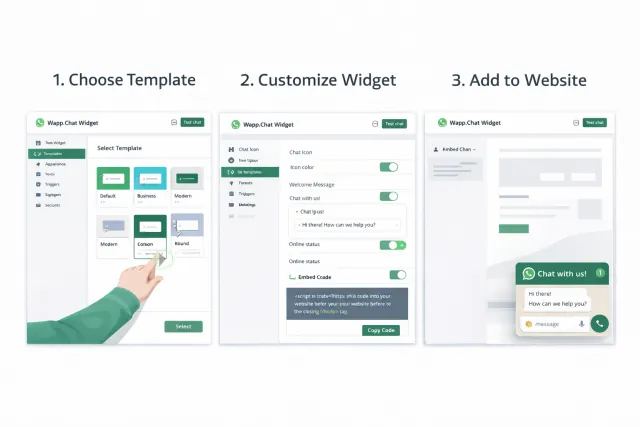
Step 1: Create your widget
Open WApp Chat and create a new widget. You do not need to code the widget from scratch or mess with a custom front-end build.
Step 2: Choose a template
Pick a layout that fits your website style and use case. If you want to move fast, starting from a template is usually the easiest move.
Step 3: Customize the widget
Adjust the look and feel so it matches your brand. That can include the style, text, CTA, and overall presentation.
Step 4: Set up the chat experience
Configure the details visitors will actually see, like the greeting message and the wording that invites them to start a conversation.
Step 5: Copy the embed code
Once the widget looks right, copy the generated installation code.
Step 6: Add the code to your website
Depending on your platform, you will usually paste the code into:
- a global code injection area;
- the site footer or header;
- a custom HTML block;
- a theme setting or website builder embed area.
Step 7: Test it on desktop and mobile
Before you call it done, open the site on both desktop and mobile. Make sure the widget is visible, opens the right flow, and does not get in the way of other important UI elements.
That is it. In most cases, the setup is genuinely pretty quick.
How to add WhatsApp chat on different website platforms
One of the nice things about using a widget instead of hand-rolling everything is that the setup is usually similar across platforms.
WordPress
On WordPress, you can typically install the widget through:
- a custom HTML block;
- theme settings;
- header or footer code injection;
- a code snippets solution.
If you want the widget visible site-wide, global placement usually makes the most sense.
Shopify
For Shopify stores, site-wide placement is often the smart move because shoppers may want to ask questions from product pages, collection pages, or even the cart.
Wix
In Wix, users usually add a custom embed or paste code through the relevant settings area, then publish and test.
Webflow
In Webflow, the code can usually be added at the page level or project level depending on whether you want the widget on one page or the entire site.
Squarespace
Squarespace users often place the code through code injection settings or a code block, depending on scope.
Static HTML websites
On a plain HTML site, you would generally paste the installation snippet before the closing </body> tag or inside a shared layout file.
Fastest path to launch
If you want the shortest version, it looks like this:
- create the widget in WApp Chat;
- customize it;
- copy the code;
- paste it into your platform's global code area;
- publish and test.
Best practices for embedding WhatsApp chat
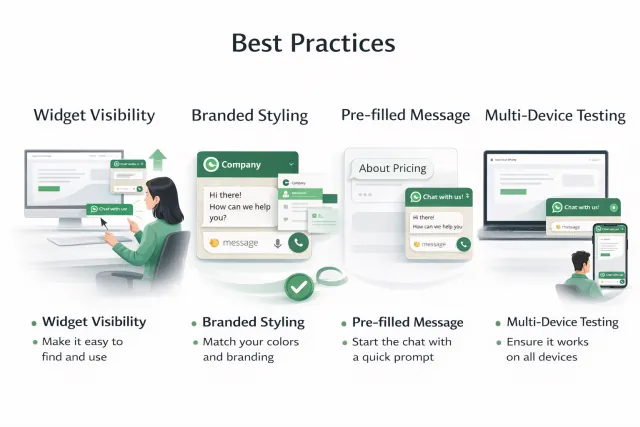
Keep it visible without making it annoying
Bottom-right placement is popular for a reason. Visitors already expect chat tools there. Just make sure the widget does not cover important buttons, sticky mobile navigation, or forms.
Use a CTA that sounds natural
Generic labels can feel flat. A stronger CTA makes the action clearer.
Examples:
- Chat with us on WhatsApp
- Ask a quick question
- Get pricing help
- Message our team
Avoid anything that feels too pushy or too salesy.
Use a pre-filled message
A pre-filled message lowers the activation energy. Instead of asking users to figure out the first line, you help them get started.
Examples:
- Hi, I would like to learn more about your services.
- Hello, I have a question about pricing.
- Hi, is this item currently available?
Make the widget look like it belongs on your site
A widget should feel on-brand. Match the colors, tone, and overall styling so it does not look like a random bolt-on.
Test on real devices
Desktop preview is not enough. Check the spacing, placement, and click behavior on actual mobile screens too.
Be ready to reply
This one is obvious, but it matters. If you invite people to chat and nobody answers for hours, the widget does not help much.
Common mistakes to avoid
Using the wrong phone number format
Make sure the destination number is set up correctly in international format.
Hiding the chat option too deep in the page
If the only WhatsApp link lives in the footer, a lot of visitors will never see it.
Making the widget too aggressive
A widget should be easy to notice, not distracting. If it blocks content or feels spammy, people will tune it out.
Skipping the test flow
Always click through the experience yourself. Test on desktop. Test on mobile. Test from the pages where users are most likely to reach out.
Using vague CTA copy
The wording should match intent. A support page, a product page, and a pricing page may need slightly different prompts.
Why businesses choose WApp Chat
Businesses usually choose WApp Chat for a pretty simple reason: it gives them the fast setup of a no-code tool without making the end result feel cheap.
Some of the practical advantages are:
- No-code setup: copy, paste, and go live.
- Customizable design: make the widget match your brand.
- Fast launch: useful when you do not want a long implementation cycle.
- Free starting option: easy to test before committing.
- Works across popular platforms: practical for WordPress, Shopify, Wix, Webflow, Squarespace, and HTML sites.
- Cleaner user experience: more polished than a plain text link.
Final thoughts
If all you need is a working WhatsApp link, you can set one up pretty fast.
But if you want better visibility, a smoother user experience, and more chances to turn website traffic into actual conversations, a dedicated widget is usually the better call.
That is where WApp Chat makes sense.
It gives you a fast setup, enough customization to make the widget feel native to your site, and a cleaner way to open the door to sales or support conversations.
Create the widget, drop in the code, test the flow, and you are good to go.
Frequently asked questions
Can I embed WhatsApp chat on a website without coding?
Yes. The easiest option is to use a no-code widget builder like WApp Chat, then copy and paste the installation code into your site.
Do I need WhatsApp Business to add chat to my website?
You can set up a basic click-to-chat flow with a standard WhatsApp destination, but many businesses prefer a business-focused setup for a more professional support and sales workflow.
What is the difference between a WhatsApp link and a WhatsApp widget?
A WhatsApp link is just a URL that opens a conversation. A widget is a visible website element that makes the chat option easier to notice and easier to customize.
Does a WhatsApp widget work on desktop and mobile?
Yes. On mobile, it usually opens the WhatsApp app. On desktop, it typically opens WhatsApp Web or the desktop app, depending on the user's setup.
Where should I place my WhatsApp chat widget?
For most websites, the bottom-right corner is the safest starting point because that is where visitors expect chat tools to live.
Can I add WhatsApp chat to WordPress, Shopify, Wix, or Webflow?
Yes. Most major website builders and CMS platforms support custom code or embed areas, which makes installation fairly simple.
Is there a free way to start?
Yes. WApp Chat offers a free starting option, so you can test the widget on your site before upgrading.
Ready to add WhatsApp chat to your website?
Create your free WApp Chat widget, customize it to fit your brand, and launch it on your site in minutes — no coding required.