Want to make it easier for visitors to contact you from your Big Cartel store? This guide shows how to add the Wapp Chat Widget to one specific page or display it across your whole website.
Before you begin, make sure you've created your widget and copied the installation code from your WApp Chat dashboard
Step-by-step guide for getting the code of the Wapp Chat widget
Choose How You Want to Display the Widget
Install to the single page
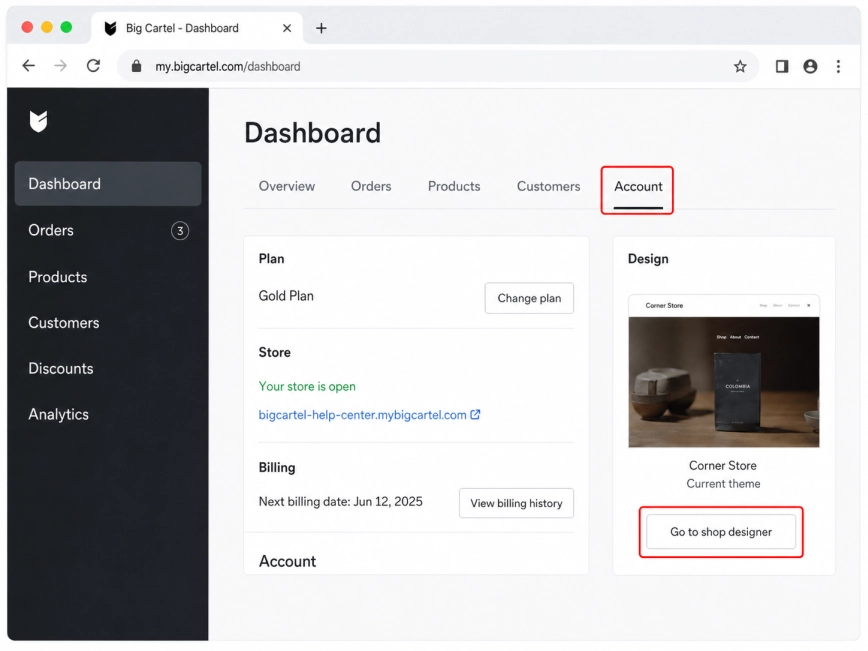
Log in to your Big Cartel dashboard. Open the Account tab and click Go to shop designer.
This will take you to the design area where you can edit your store theme and access the code settings.
Step 1: Open the Jumpseller Code Editor
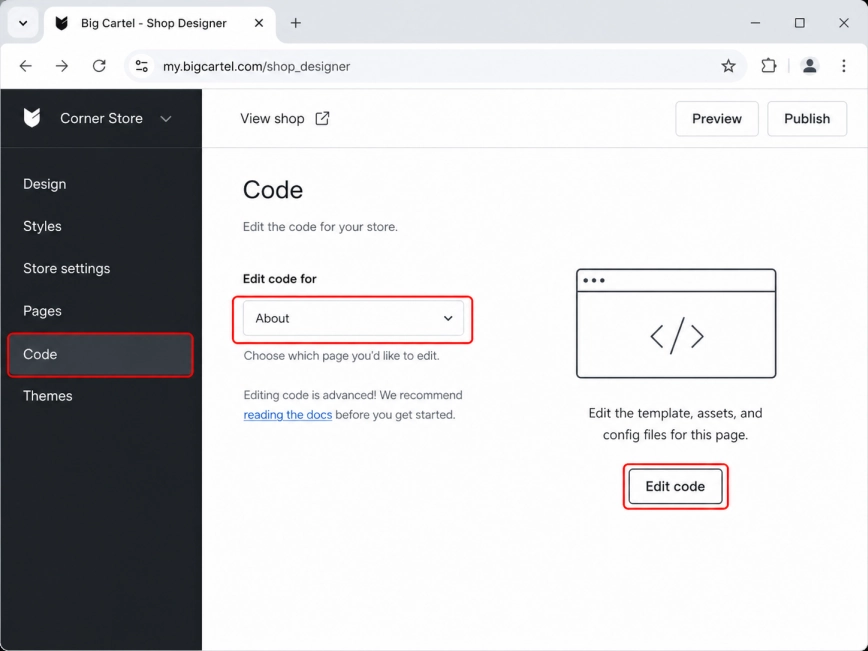
In the shop designer, open the Code tab from the left-hand menu.
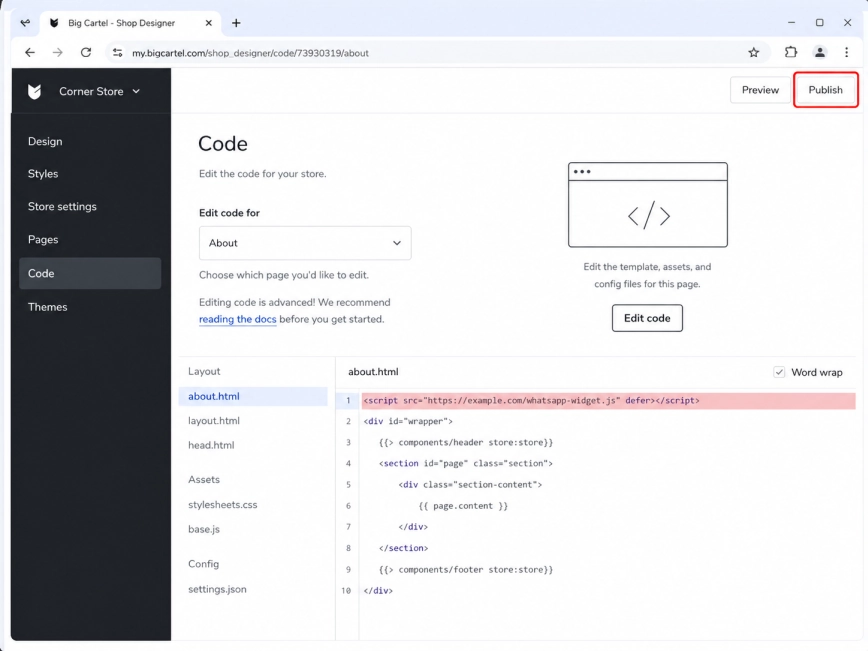
In the Edit code for dropdown, select the page where you want the WhatsApp widget to appear. For example, you can choose About, Contact, or another page available in your store.
Step 2: Choose the Page You Want to Edit
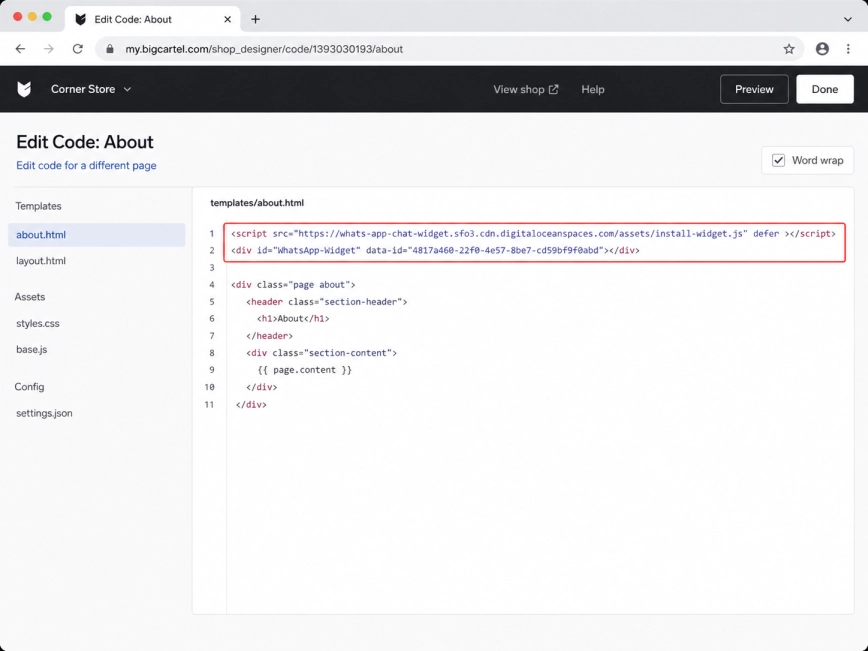
Paste your Wapp Chat Widget installation code into the selected page code.
For a floating WhatsApp widget, you can place the code near the beginning or near the end of the page template. The widget will float on the page, so you don't need to insert it inside a specific content block.
Step 3: Add the Wapp Chat Widget Code
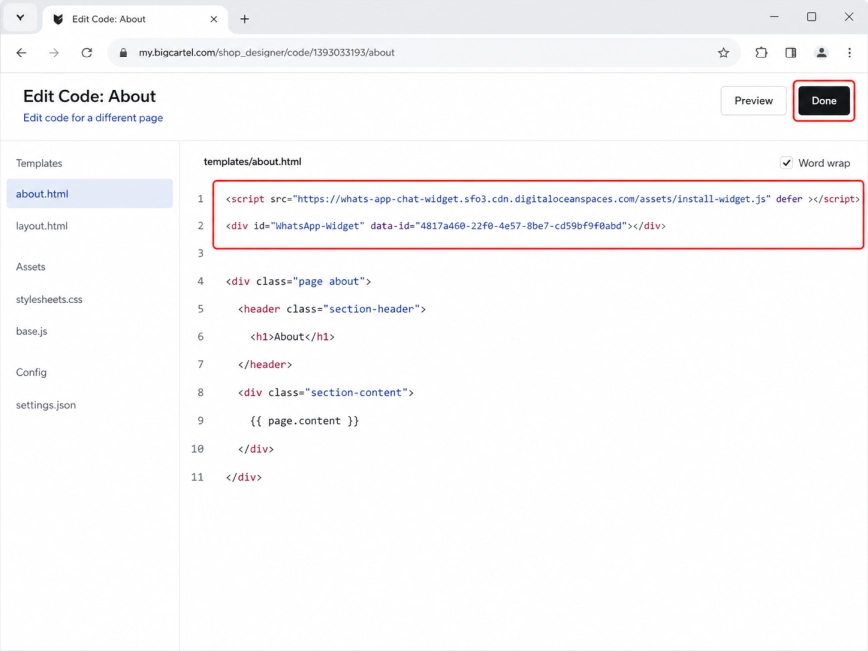
After adding the code, click Done in the upper-right corner.
This saves your edit and returns you to the Big Cartel shop designer.
Step 4: Click Done
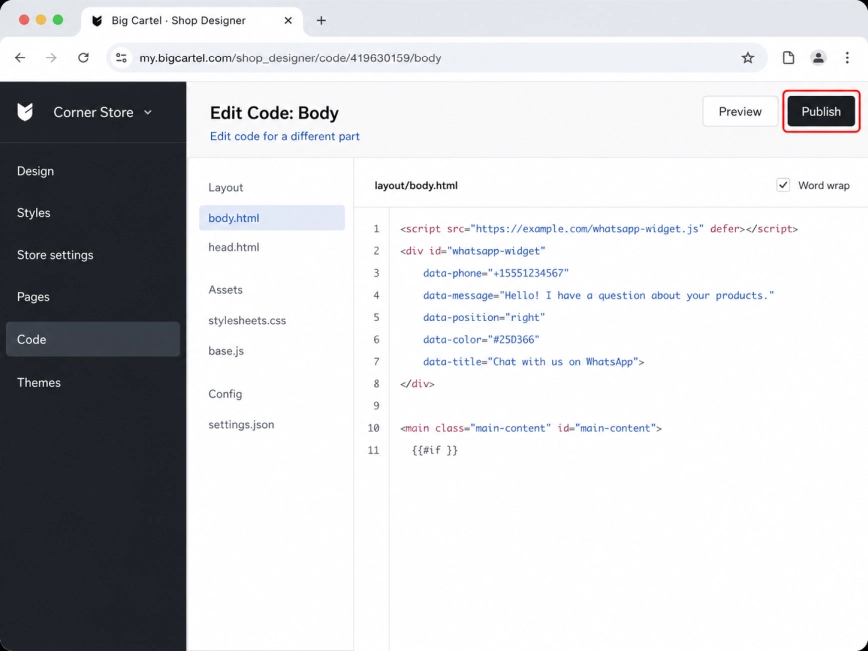
Click Publish to apply the changes to your live store.
Once published, the WhatsApp widget will appear on the page you selected.
Step 5: Publish the Changes
Install to the All pages
Show it on all pages of your website
Log in to your Big Cartel dashboard. Go to the Account tab and click Go to shop designer.
This is where you can manage your store design and make code changes that affect your website layout.
Step 1: Open Your Big Cartel Shop Designer
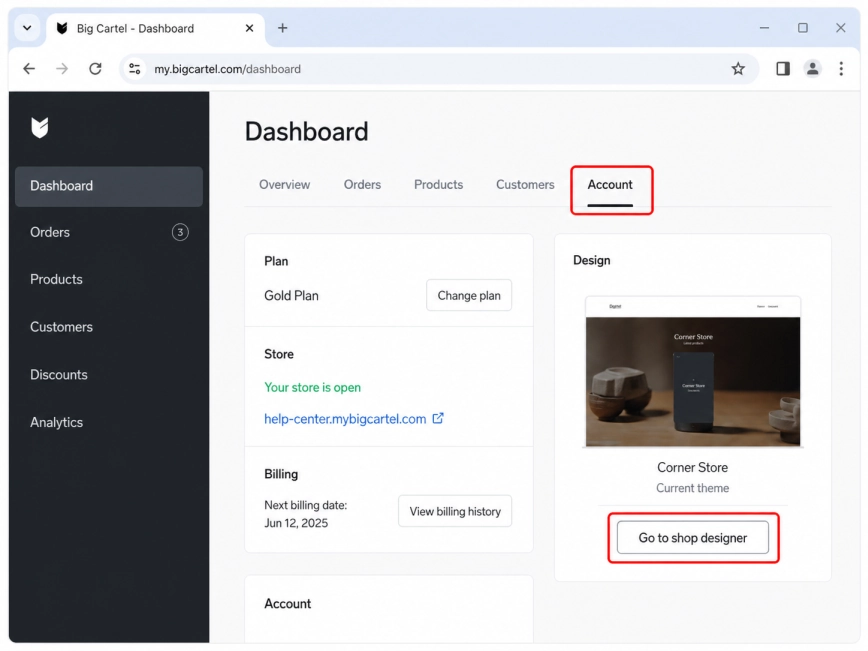
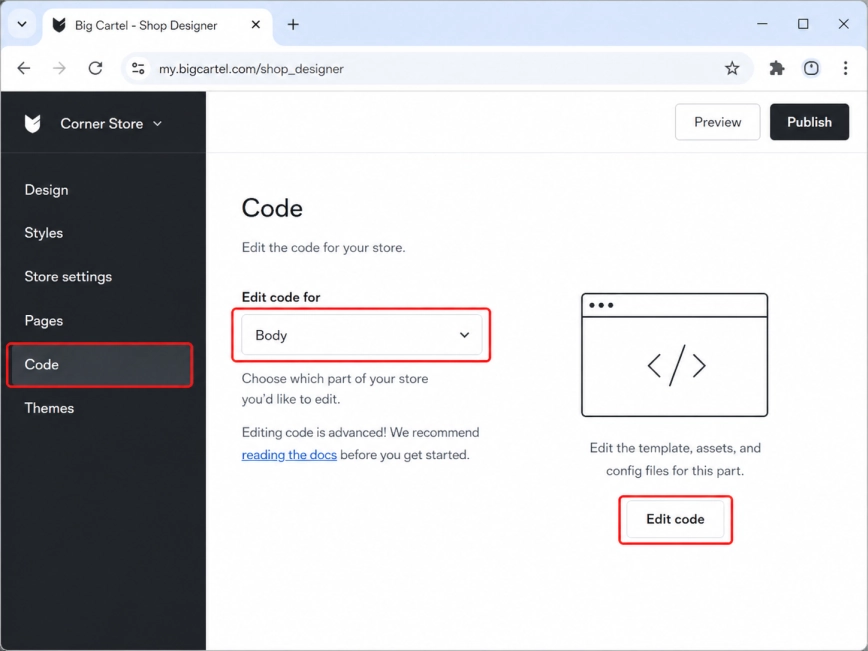
In the shop designer, open the Code tab.
In the Edit code for dropdown, select Body. This section is used for code that should load across your store, not just on one selected page.
Step 2: Open the Body Code Section
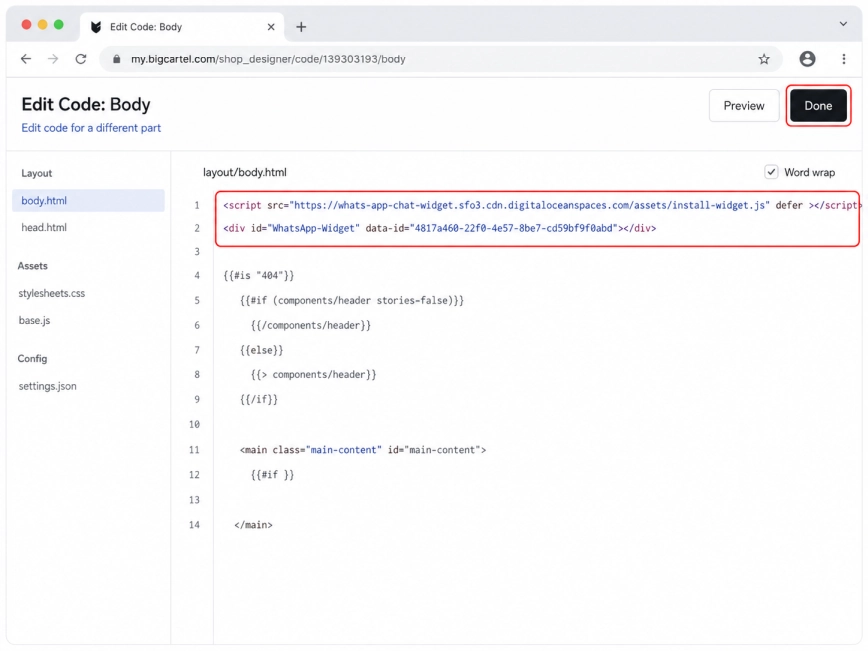
Paste your Wapp Chat Widget installation code into the Body code editor.
This placement is usually the best option for a floating WhatsApp widget because it allows the widget to appear throughout your Big Cartel website.
Step 3: Paste the Wapp Chat Widget Code
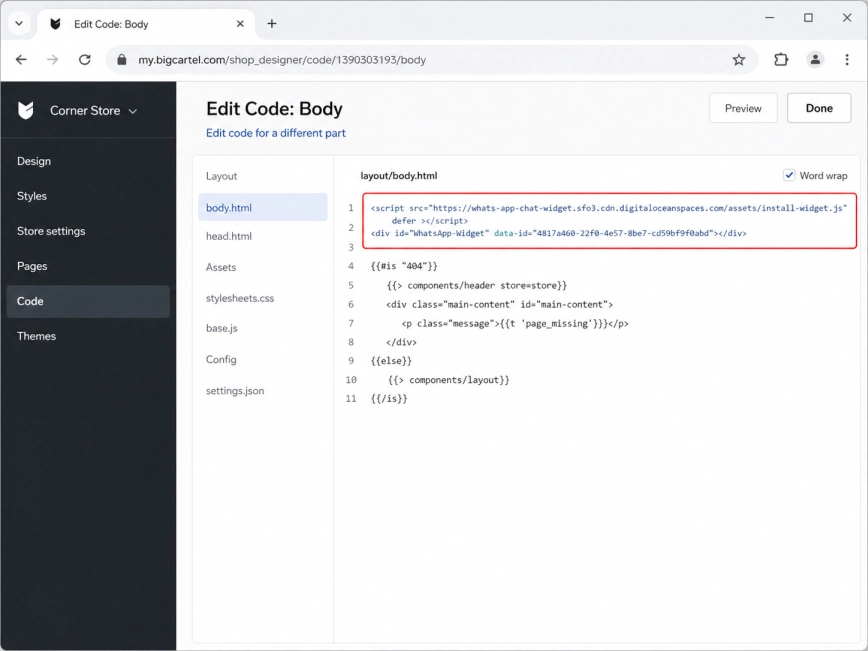
Click Done in the upper-right corner after adding the code.
Your changes will be saved in the editor, but they still need to be published before visitors can see the widget.
Step 4: Click Done
Click Publish to make the widget live on your website.
After publishing, the Wapp Chat Widget should appear on all pages of your Big Cartel store.
Step 5: Publish the Changes
All set! Your Wapp Chat Widget should now be live on your Big Cartel website.
Need help with the setup?
Contact our support team and we'll help you get the widget working properly.
support@wapp-chat-widget.com