Add a WhatsApp chat button to your Duda website so visitors can message you directly from any page or from one specific page only.
Before you begin, make sure you've created your widget and copied the installation code from your WApp Chat dashboard
Step-by-step guide for getting the code of the Wapp Chat widget
If your website is built on Duda, you can add the Wapp Chat Widget without changing your site design or rebuilding any pages. The widget works through a small installation code that you paste into the Duda editor.
This guide covers two common setup options: adding the WhatsApp widget to one selected page or displaying it across your entire Duda website. Before starting, create and customize your widget in the Wapp Chat dashboard, then copy your installation code.
Choose How You Want to Display the Widget
Install to the single page
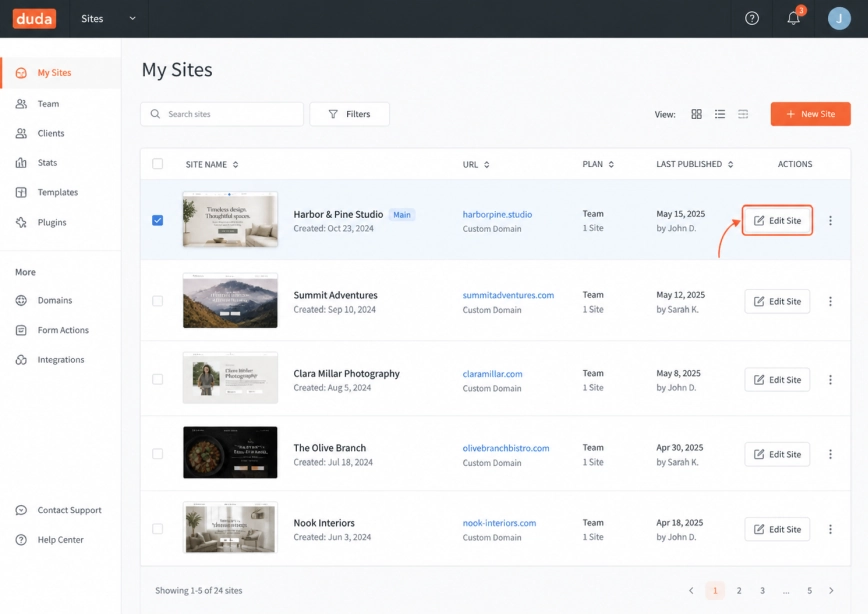
Log in to your Duda account and open the website where you want to add the WhatsApp chat widget.
Once the editor is open, go to the exact page where the widget should appear. This option is useful if you only want WhatsApp chat on a landing page, contact page, service page, or another specific part of your website.
Step 1: Open Your Website in the Duda Editor
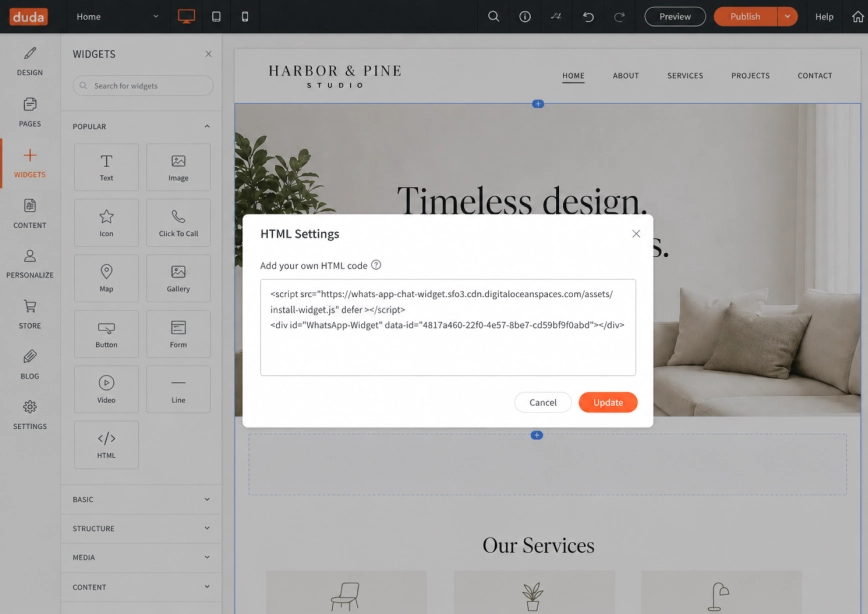
In the left sidebar of the Duda editor, open Widgets. Find the HTML widget and drag it onto the page.
You do not need to worry too much about the visible placement of this HTML block. The code is used to load the WhatsApp widget, while the chat button itself will appear as a floating element on the page.
Step 2: Add an HTML Widget to the Page

Click the HTML widget you added to the page and paste your Wapp Chat installation code into the code field.
After adding the code, click Update or save the HTML block, depending on your Duda editor view.
Step 3: Paste the Wapp Chat Widget Code
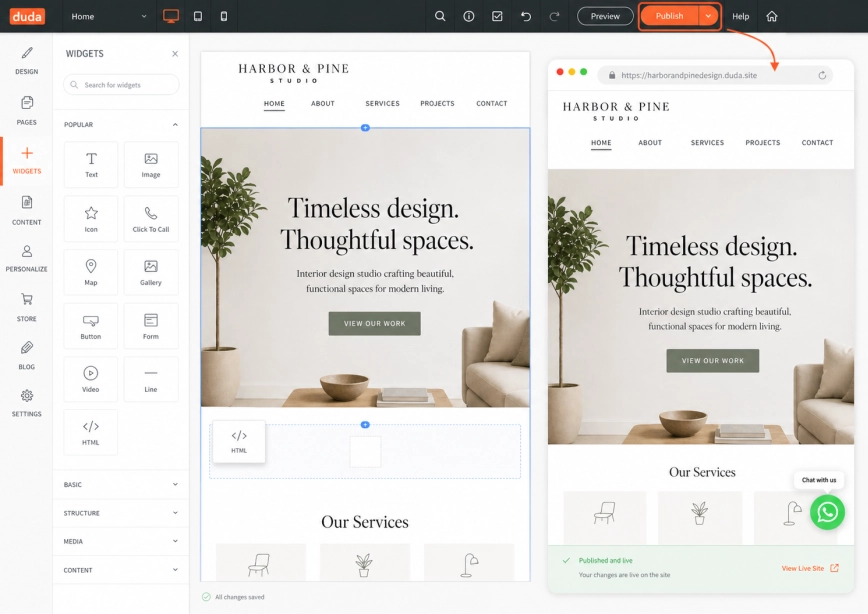
Publish your Duda website to make the changes live.
Open the published page and check that the WhatsApp chat button appears correctly. If it does not show right away, refresh the page or clear the browser cache and check again.
Step 4: Publish the Page
Install to the All pages
Show it on all pages of your website
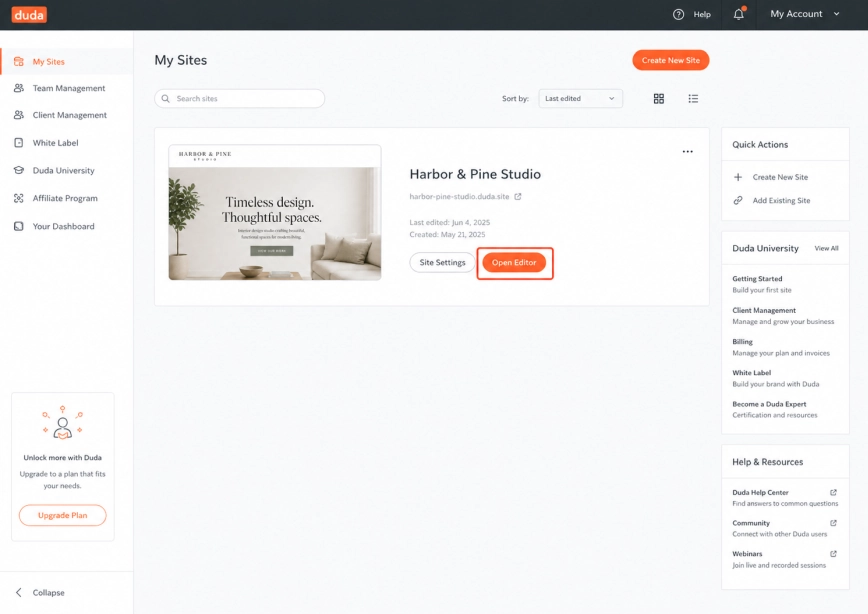
Log in to your Duda dashboard and open the website where you want the WhatsApp widget to appear on every page.
This method is best if you want visitors to contact you from anywhere on the site, including the homepage, product pages, service pages, blog posts, and contact page.
Step 1: Open Your Duda Website Editor
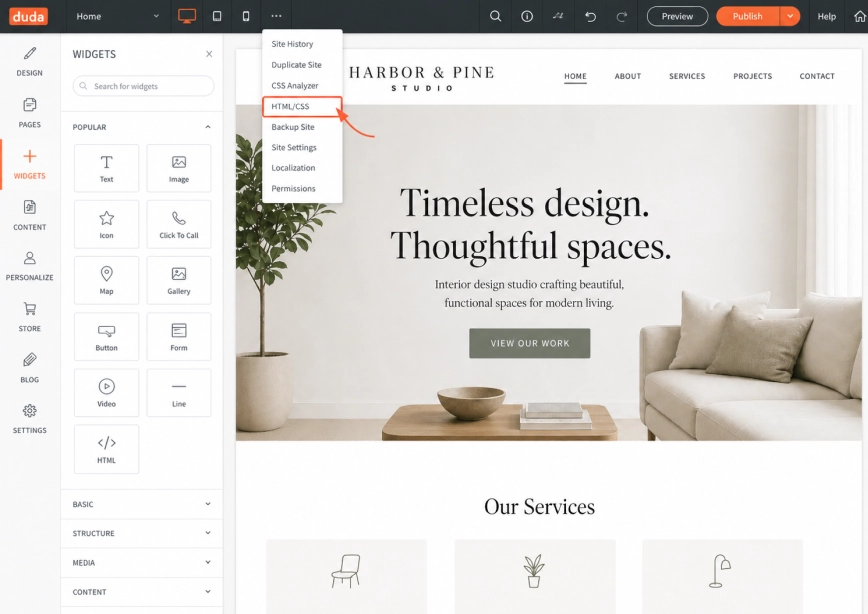
In the top menu of the Duda editor, open the HTML/CSS area.
This section is used for adding custom code that can be loaded globally across your website.
Step 2: Go to the HTML/CSS Section
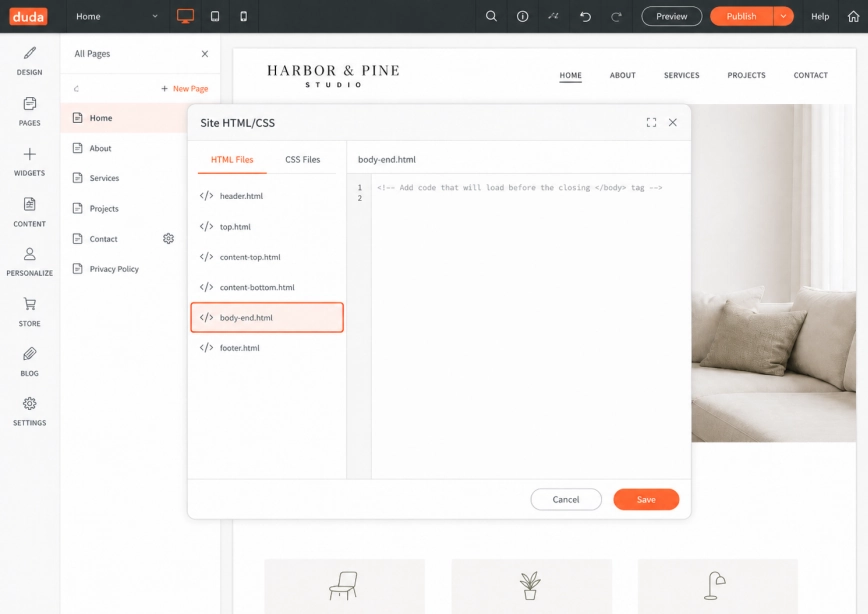
Inside Site HTML/CSS, select the body-end.html file.
This is a good place to add the Wapp Chat Widget code because it lets the widget load near the end of the page body without interfering with the main page content.
Step 3: Open body-end.html
Paste your Wapp Chat Widget installation code into the body-end.html file.
Make sure the full code is added exactly as copied from your Wapp Chat dashboard.
Step 4: Paste the Widget Code
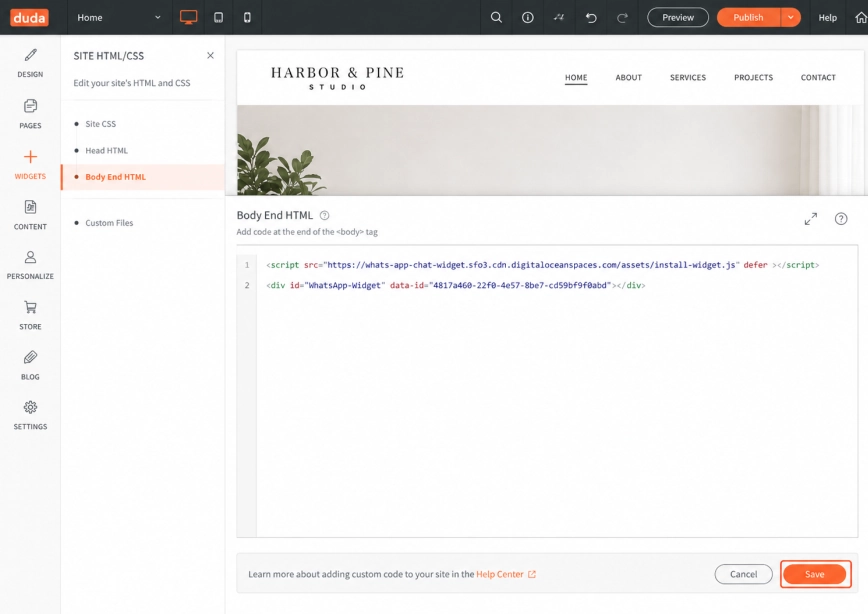
Save the changes in the HTML/CSS editor, then publish your Duda website.
After publishing, visit a few different pages of your website to make sure the WhatsApp widget appears everywhere you need it.
Step 5: Save and Publish Your Website

That is it. Your Wapp Chat Widget should now be working on your Duda website.
If the widget does not appear immediately, check that the code was pasted completely and that the latest version of your site has been published.
Need help with setup? Contact us and our team will help you get the widget running.
support@wapp-chat-widget.com