Add a WhatsApp chat button to your GoDaddy website.
Before you begin, make sure you've created your widget and copied the installation code from your WApp Chat dashboard
Step-by-step guide for getting the code of the Wapp Chat widget
Want visitors to contact you faster from your GoDaddy website? With the WApp Chat Widget, you can add a WhatsApp chat button to your site and let people message you directly, without searching for your phone number or filling out a long contact form.
This guide shows how to install the widget in GoDaddy Website Builder using an HTML section. The process is simple: open your site editor, add an HTML block, paste your WApp Chat installation code, and publish the page.
Before you start, make sure you have already created your widget in the WApp Chat dashboard and copied your unique installation code.
Install to the single page
Log in to your GoDaddy account and open the website where you want to add the WhatsApp chat button.
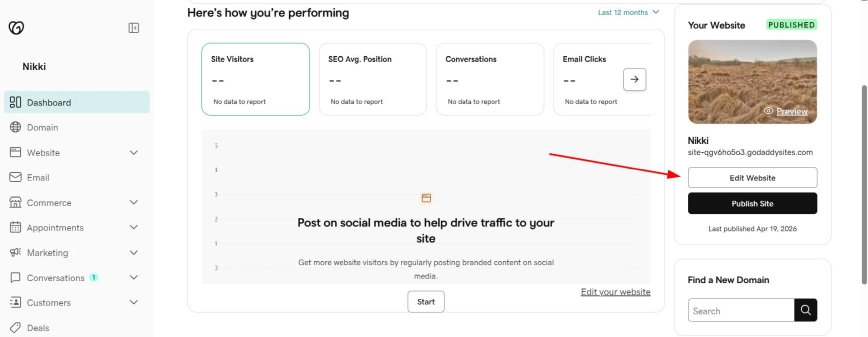
In your GoDaddy dashboard, find your website card and click the Edit Website button. This will open the GoDaddy Website Builder, where you can manage pages, sections, and content blocks.
Step 1: Open Your GoDaddy Website Editor
Once the website editor opens, go to the page where you want the WhatsApp widget to appear.
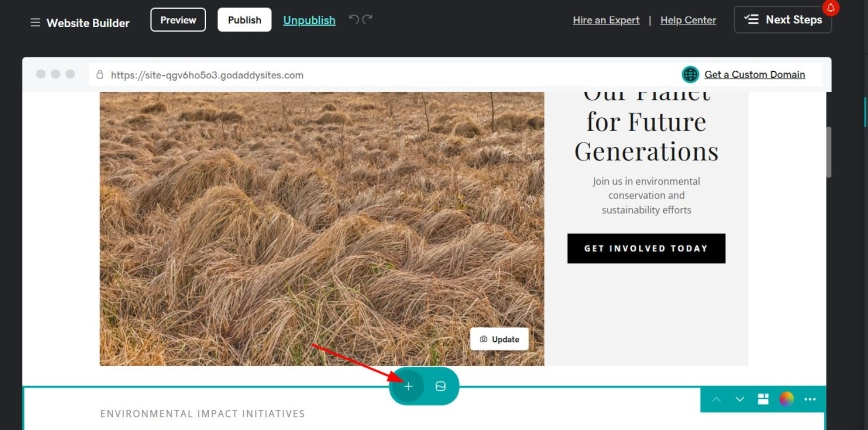
Scroll to the part of the page where you want to add the custom HTML section. Then click the plus icon between sections. This will open the list of available section types.
Since the WApp Chat Widget is usually floating, the exact position of this section on the page is not critical. Still, it is better to place it somewhere easy to find later, especially if you need to update the code.
Step 2: Choose Where to Add the Widget Section
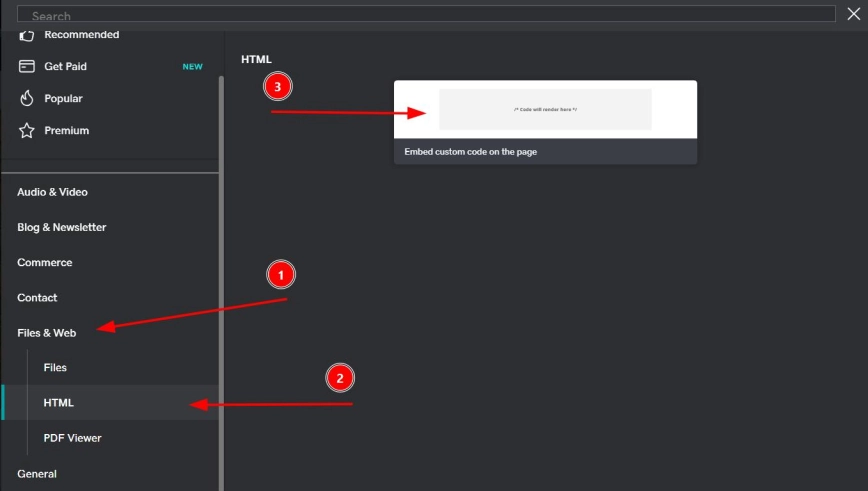
In the section menu, open the Files & Web category and select HTML.
Then choose the Embed custom code on the page option. This block allows you to insert the WApp Chat Widget installation code directly into your GoDaddy page.
Step 3: Add an HTML Block
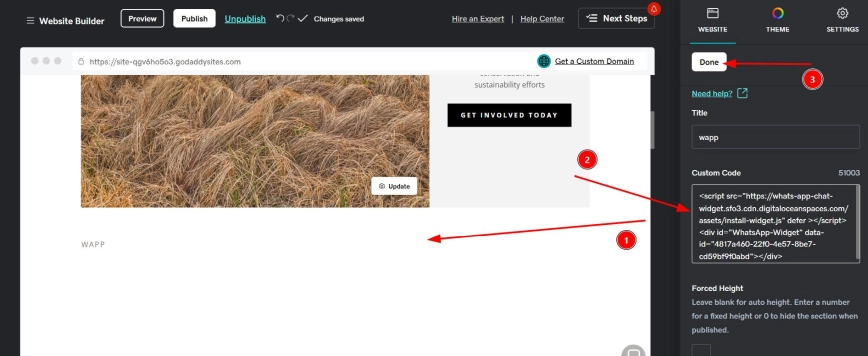
After adding the HTML section, GoDaddy will open the settings panel on the right side of the editor.
Add a simple title for the section, for example WApp or WhatsApp Chat. Then paste your WApp Chat installation code into the Custom Code field.
Use the code from your WApp Chat dashboard.
After pasting the code, click Done to save the HTML section.
If the widget does not appear correctly inside the GoDaddy editor, do not worry. Custom scripts may display properly only after the website is published and opened as a live page.
Step 4: Paste Your WApp Chat Installation Code
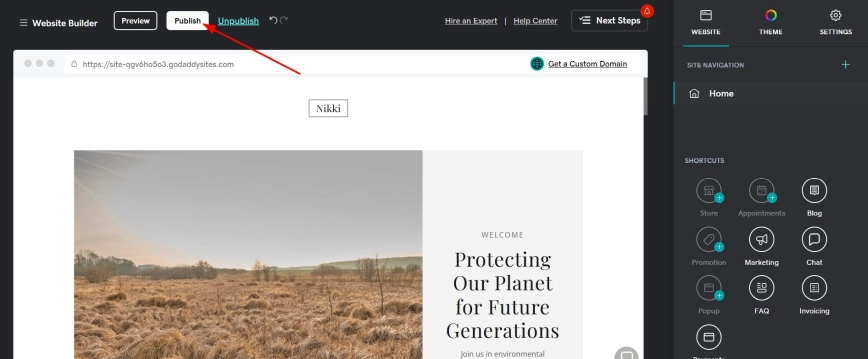
When the code is saved, click the Publish button at the top of the GoDaddy editor.
After publishing, open the live version of your website and check the page where you added the HTML block. If everything is set up correctly, the WhatsApp chat button will appear on the site and visitors will be able to contact you in one click.
Step 5: Publish Your Website
Install to the All pages
How to Show the Widget on Several GoDaddy Pages
GoDaddy Website Builder does not currently provide a simple built-in option to add this type of custom widget code to every page at once from the standard editor.
If you want the WhatsApp chat button to appear on several pages, add the same HTML section and paste the same WApp Chat installation code on each page where you want the widget to be visible.
For best results, add the widget to the pages where visitors are most likely to need quick help: your homepage, contact page, service pages, product pages, pricing page, or booking page.
How to Show the Widget on Several GoDaddy Pages
That's it! 🎉
You have successfully added the WApp Chat Widget to your GoDaddy website. Your visitors can now start a WhatsApp conversation with you directly from the page, without filling out a form or searching for your contact details.
Need a Hand? If you have any questions during installation or want help customizing your widget, our support team is here to help. Please reach out to us.
support@wapp-chat-widget.com