Want to make it easier for Jimdo visitors to contact you on WhatsApp? This guide walks you through two simple ways to add the Wapp Chat Widget: to one selected page or to the whole website.
Before you begin, make sure you've created your widget and copied the installation code from your WApp Chat dashboard
Step-by-step guide for getting the code of the Wapp Chat widget
Choose How You Want to Display the Widget
Install to the single page
Log in to your Jimdo account and open the website where you want to place the WhatsApp widget.
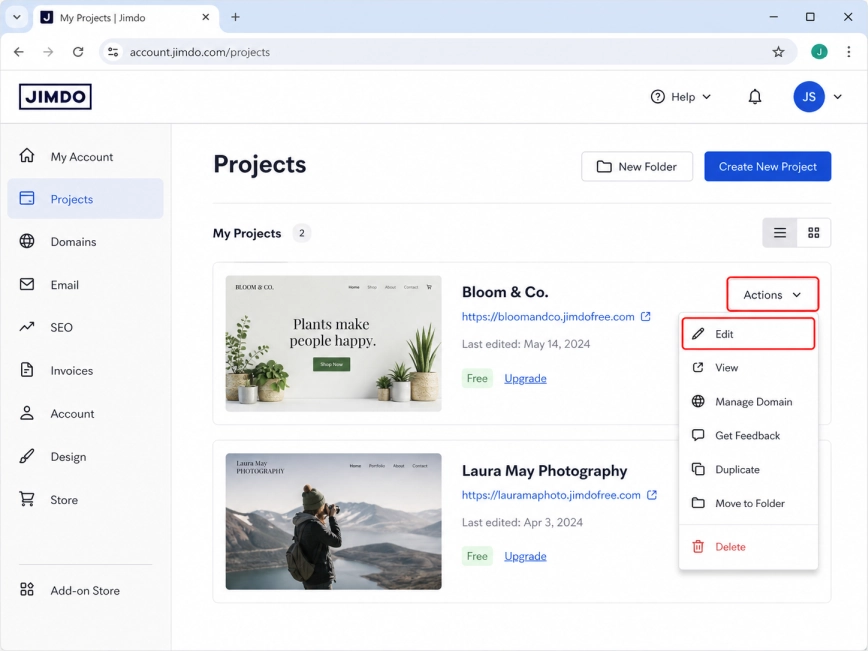
From the Projects area, choose your site, click Actions, and then select Edit. This will open the Jimdo editor, where you can work with the page content.
Step 1: Open Your Jimdo Website Editor
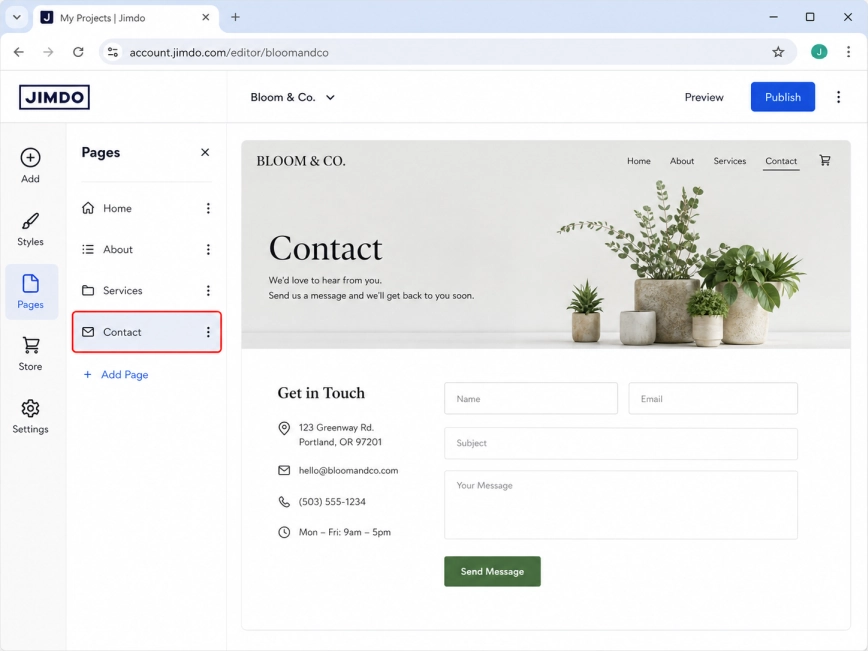
Open the page where you want to show the WhatsApp chat button. This option works best if you only need the widget on a specific page, such as a contact page, landing page, booking page, or service page.
Step 2: Go to the Page Where the Widget Should Appear
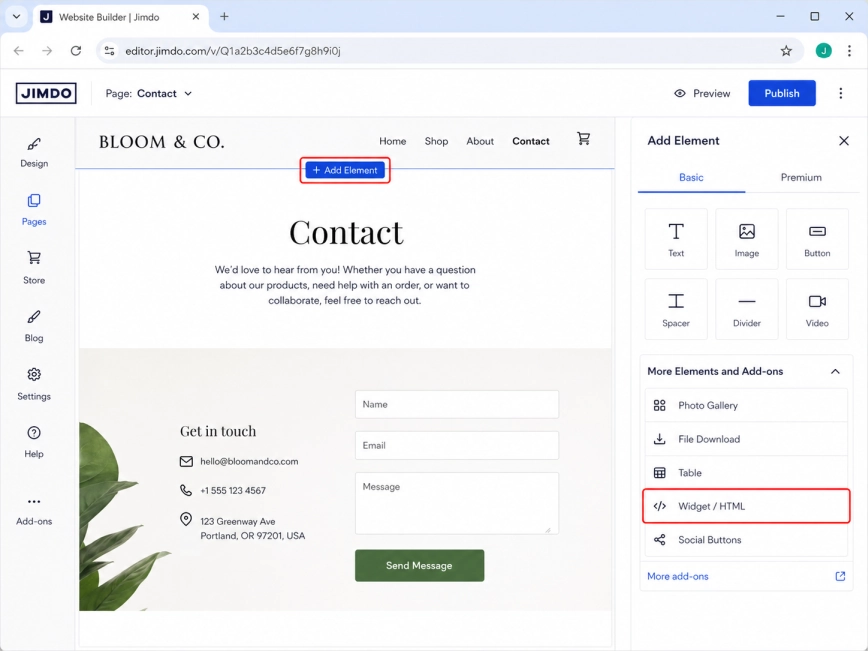
Click Add Element in the part of the page where you want to insert the code.
Then open More Elements and Add-ons and choose Widget / HTML. Jimdo will add a custom code block to the page, which is exactly what you need for the Wapp Chat installation code.
Step 3: Add a Widget / HTML Block
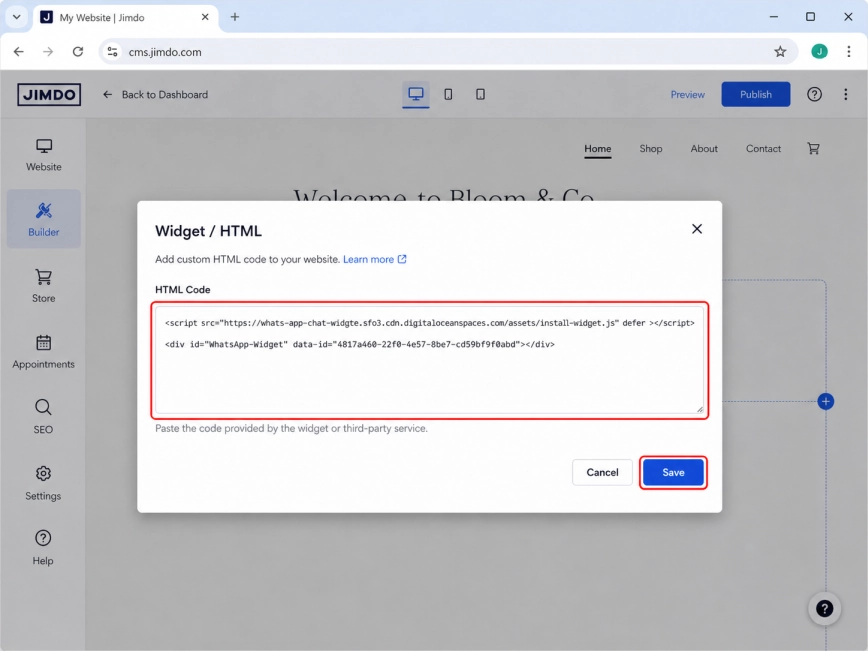
Paste your Wapp Chat Widget code into the HTML field.
After adding the code, click Save. The floating WhatsApp button will be connected to this selected Jimdo page.
Step 4: Paste the Wapp Chat Widget Code
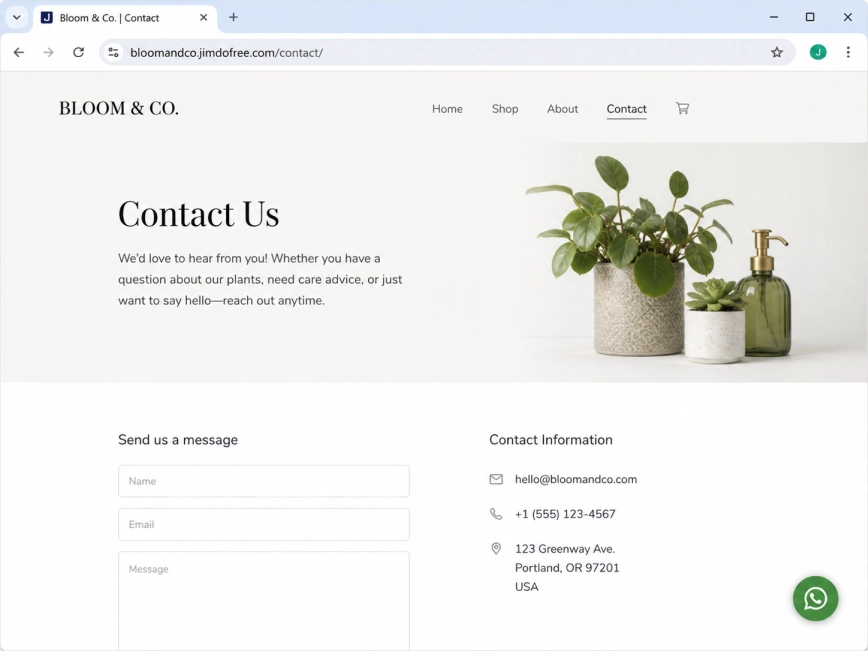
Open the page on your live website and check the widget. You should see the WhatsApp chat button floating on the page.
If it does not appear immediately, refresh the page, wait a few seconds, or clear the browser cache. Some Jimdo changes may need a short moment before they are visible on the live site.
Step 5: Preview the Page
Install to the All pages
Add Your Widget to All Pages
Log in to Jimdo and open the website where you want to display the WhatsApp widget across all pages.
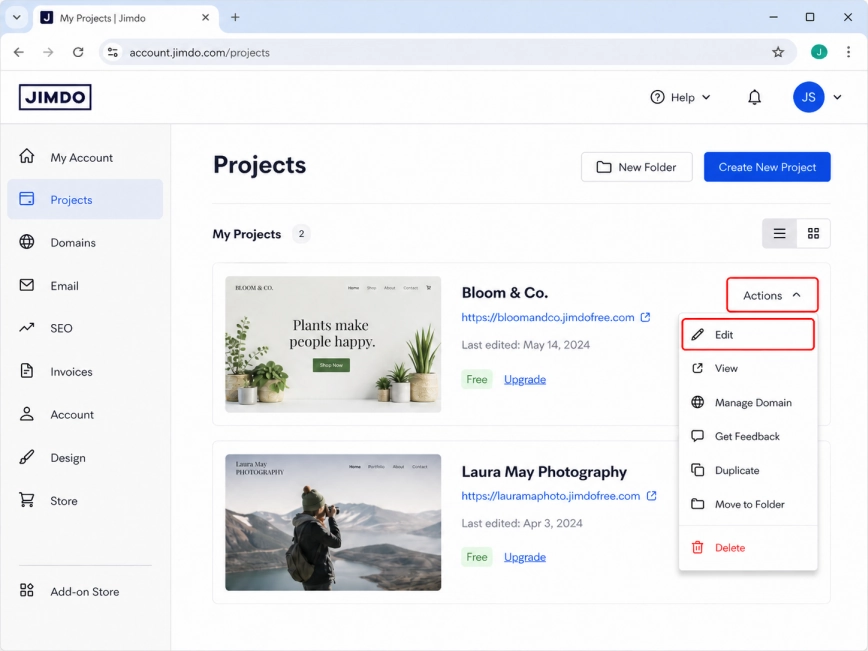
In the Projects area, select your website, click Actions, and choose Edit to open the editor.
Step 1: Open Your Jimdo Website Editor
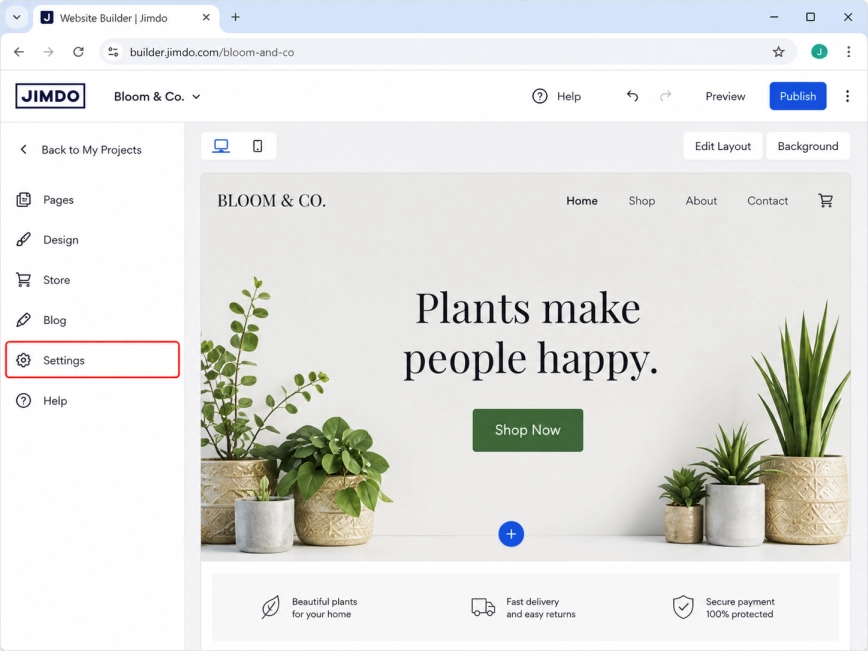
In the Jimdo editor, open the menu on the left side and go to Settings.
This section contains the website-level settings, including the area where you can add code that loads across the full site.
Step 2: Open the Settings Menu
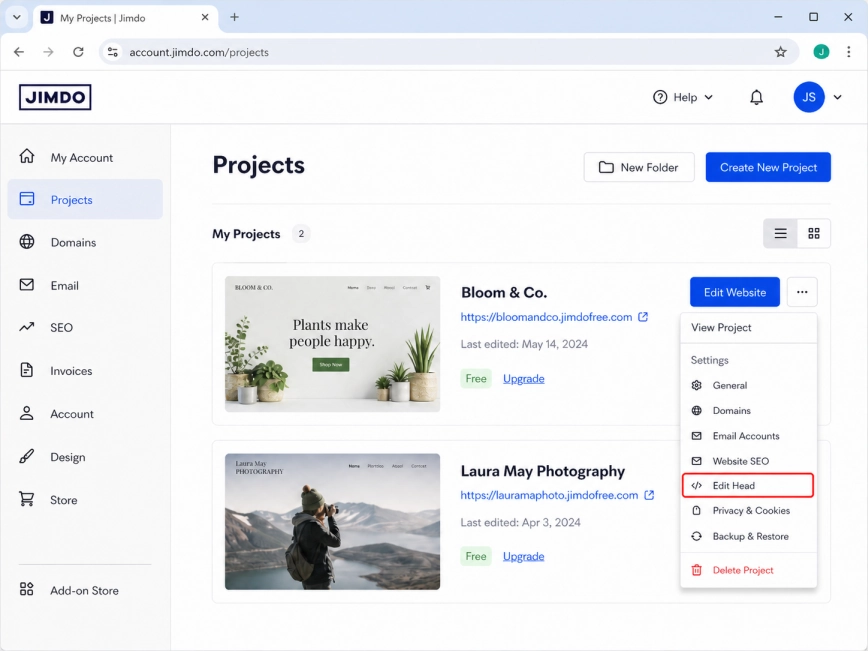
Inside Settings, find and open Edit Head.
Step 3: Find the Edit Head Section
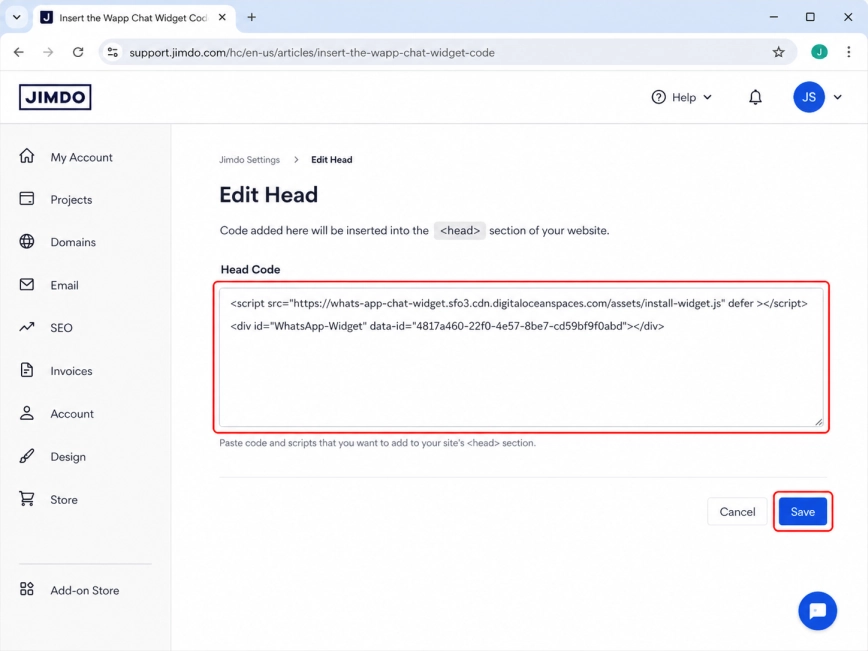
Insert the Wapp Chat Widget installation code into the Edit Head field.
Once the code is added, click Save to apply the update to your website.
Step 4: Paste the Wapp Chat Widget Code
Open your live Jimdo website and check a few different pages, such as the homepage, contact page, and one inner page.
The WhatsApp button should now appear as a floating widget across the whole site. If you do not see it right away, refresh the page or clear your browser cache.
Step 5: Check Several Pages of Your Website
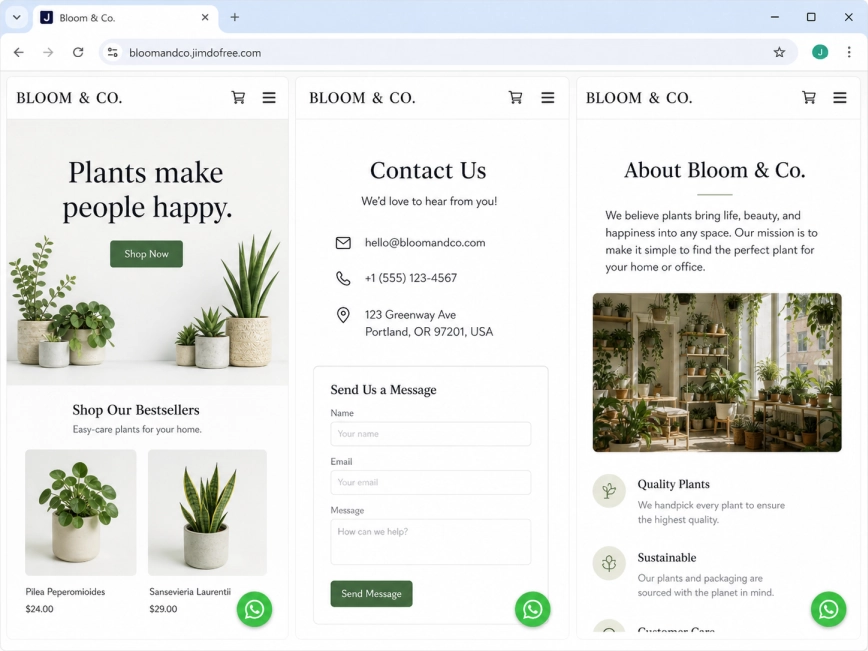
Done. Your Wapp Chat Widget should now be working on your Jimdo website.
Need help with the setup?
Contact our support team and we will help you get the widget live.
support@wapp-chat-widget.com