Want to let customers message you on WhatsApp directly from your Lightspeed store? This guide shows how to add the Wapp Chat Widget to a single page or display it across your entire website.
Before you begin, make sure you've created your widget and copied the installation code from your WApp Chat dashboard
Step-by-step guide for getting the code of the Wapp Chat widget
Adding a WhatsApp chat button to your Lightspeed website makes it easier for visitors to contact you while they are browsing your store. Customers can ask about products, delivery, orders, or store details without looking for a separate contact form.
Before you start, make sure you have already created and customized your widget in the Wapp Chat dashboard. Then copy your installation code and choose one of the methods below.
Choose How You Want to Display the Widget
Install to the single page
Log in to your Lightspeed admin panel.
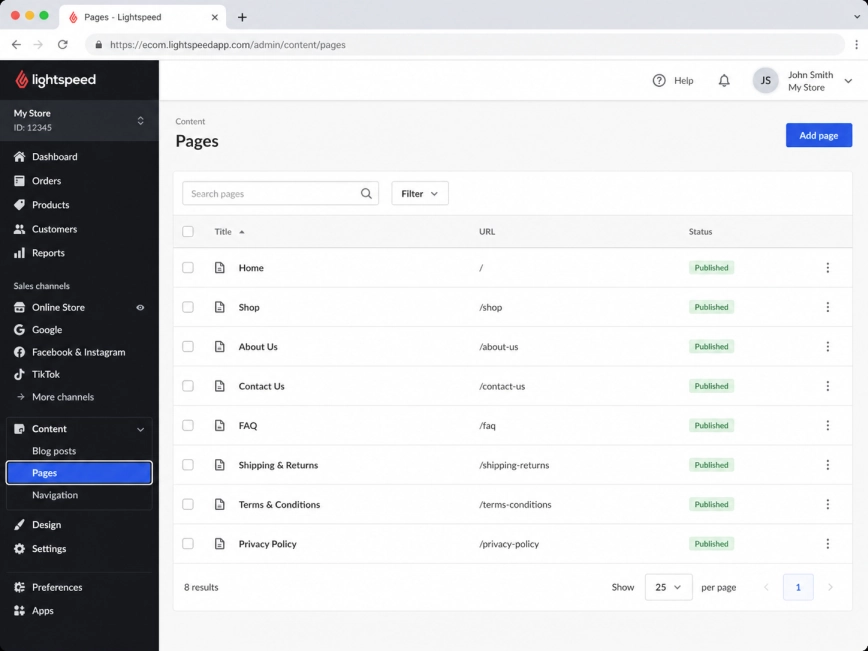
In the left sidebar, open Content, then click Pages.
You will see the list of pages available on your website.
Step 1: Open the Pages section
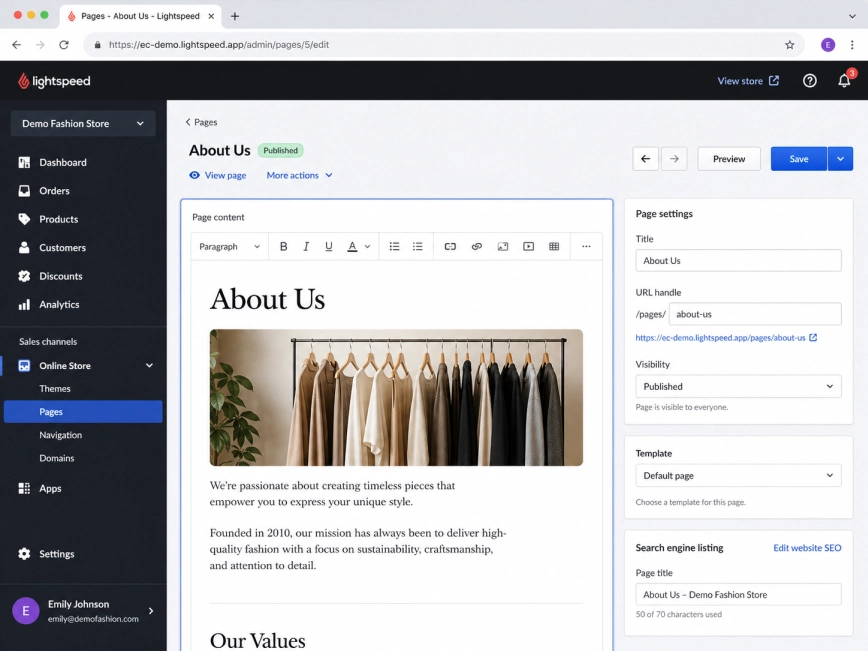
Choose the page where you want to show the WhatsApp widget.
For example, you can add it to your About Us, Contact Us, or another custom page.
Step 2: Select the page you want to edit
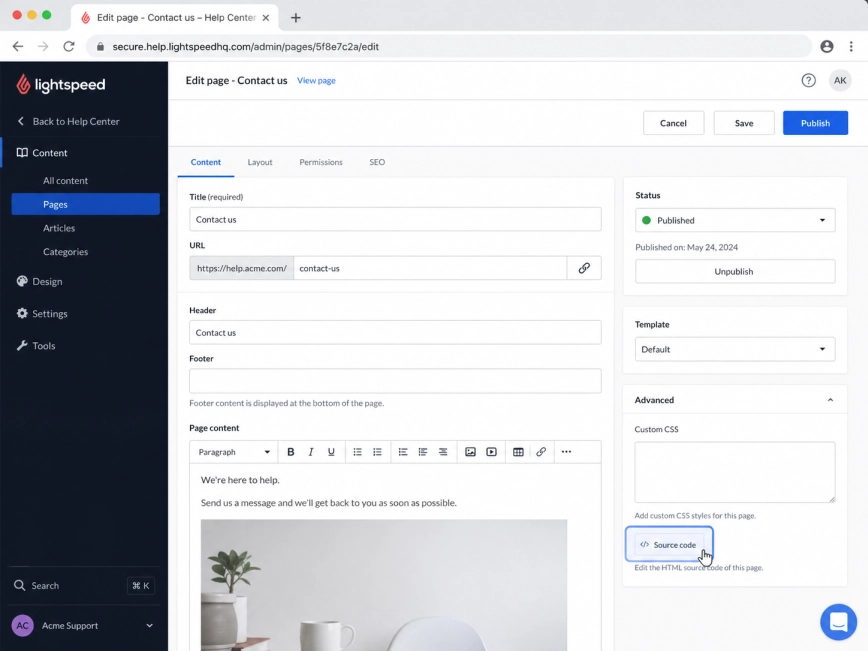
Inside the page editor, find the source code or HTML editing option.
In some Lightspeed interfaces, this option can appear as Source code inside the page editor or in the advanced settings area.
Step 3: Open the source code editor
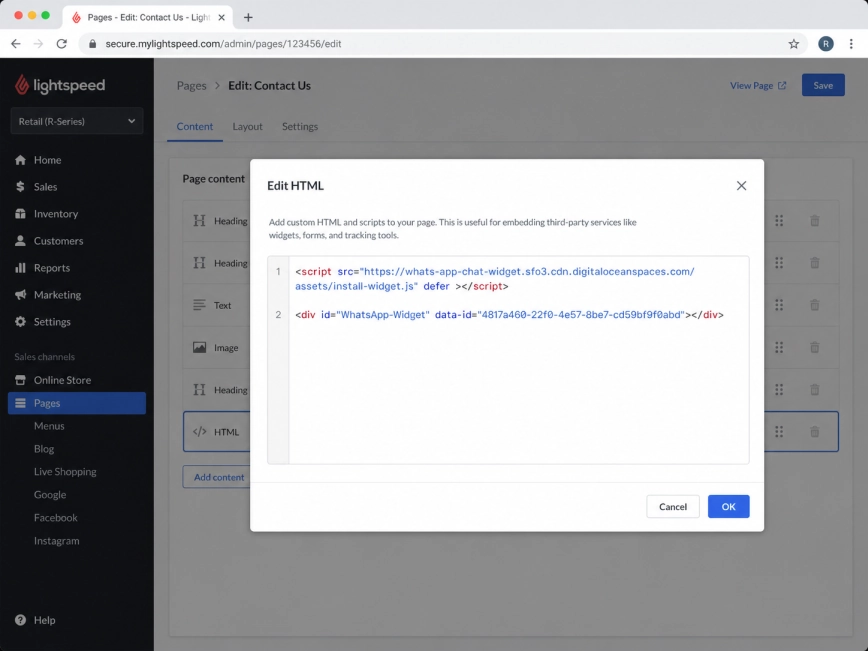
Paste your Wapp Chat Widget installation code into the HTML or source code editor.
Use the code from your own Wapp Chat dashboard.
Step 4: Add the Wapp Chat Widget code
Click OK or confirm the HTML changes, then save the page.
Open the page on your live website and check that the WhatsApp widget appears correctly.
Step 5: Save the changes
Install to the All pages
Show the Widget on All Pages of Your Website
Log in to your Lightspeed admin panel.
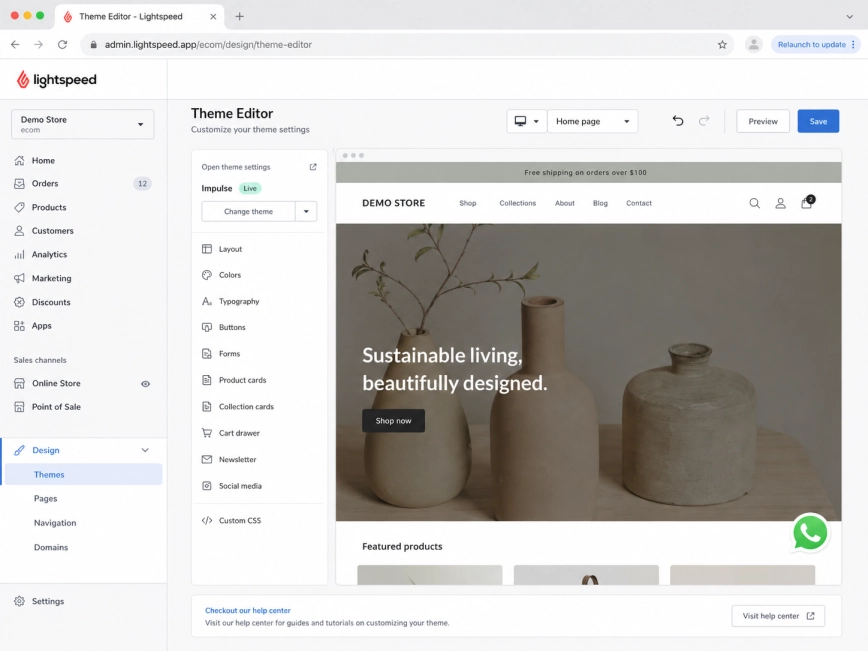
In the left sidebar, go to Design, then open Themes or Theme Editor.
Step 1: Open the Theme Editor
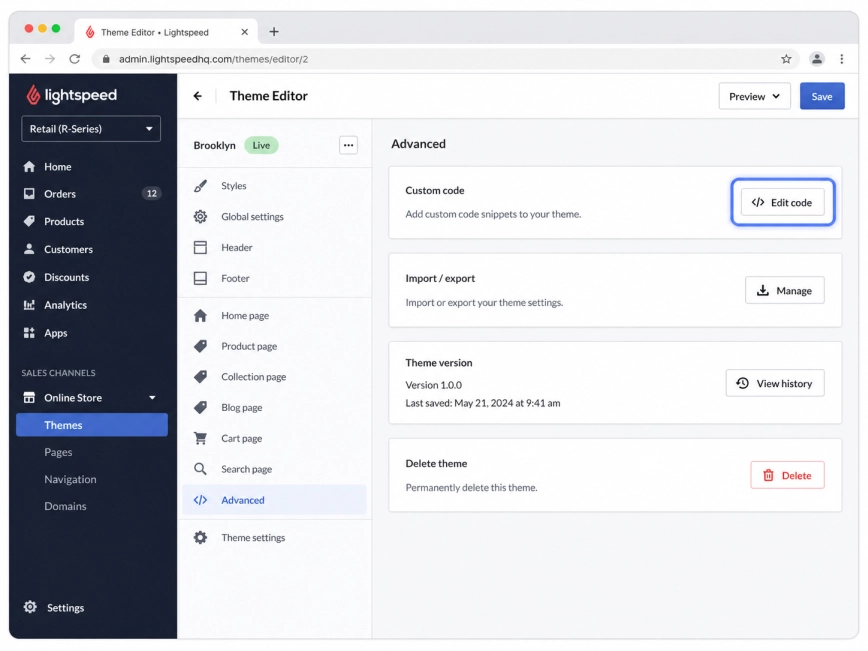
Inside the Theme Editor, open the Advanced section.
Click Edit code to access your theme files.
Step 2: Open the advanced code settings
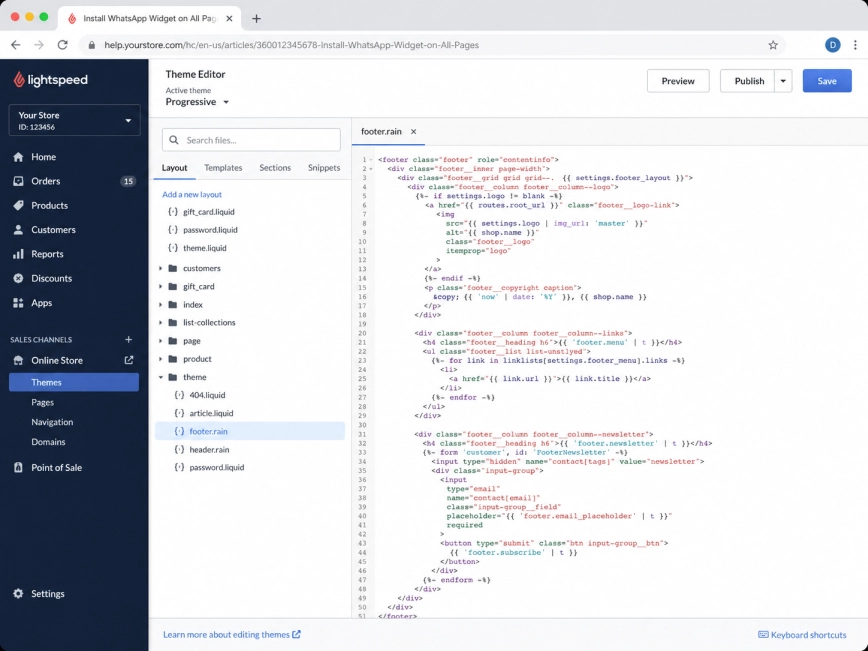
In the theme file list, find and open footer.rain.
For a floating WhatsApp widget, the footer file is usually the best place to add the code because it can load the widget across all pages of your store.
Step 3: Select the footer.rain file
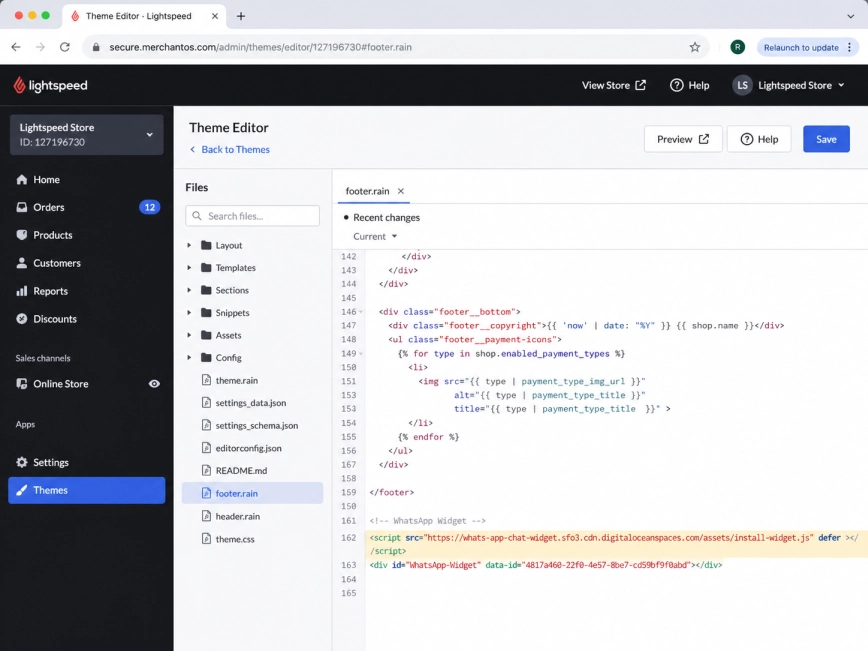
Scroll to the bottom of the footer.rain file.
Paste your Wapp Chat Widget installation code near the end of the file. If you see a closing footer or body area, place the code close to that section.
Step 4: Insert the Wapp Chat Widget code
Click Save in the upper-right corner of the Theme Editor.
After saving, open your website in a new browser tab and check several pages to make sure the WhatsApp widget appears everywhere.
Step 5: Save the changes
All set. Your Wapp Chat Widget should now be live on your Lightspeed website.
Your visitors can now start a WhatsApp conversation with you directly from your store.
Need some help?
Contact our support team and we will help you set up the widget.
support@wapp-chat-widget.com