Want customers to message you on WhatsApp right from your OpenCart store? This guide shows how to add the Wapp Chat Widget to one page or display it across your entire website.
Before you begin, make sure you've created your widget and copied the installation code from your WApp Chat dashboard
Step-by-step guide for getting the code of the Wapp Chat widget
Choose How You Want to Display the Widget
Install to the single page
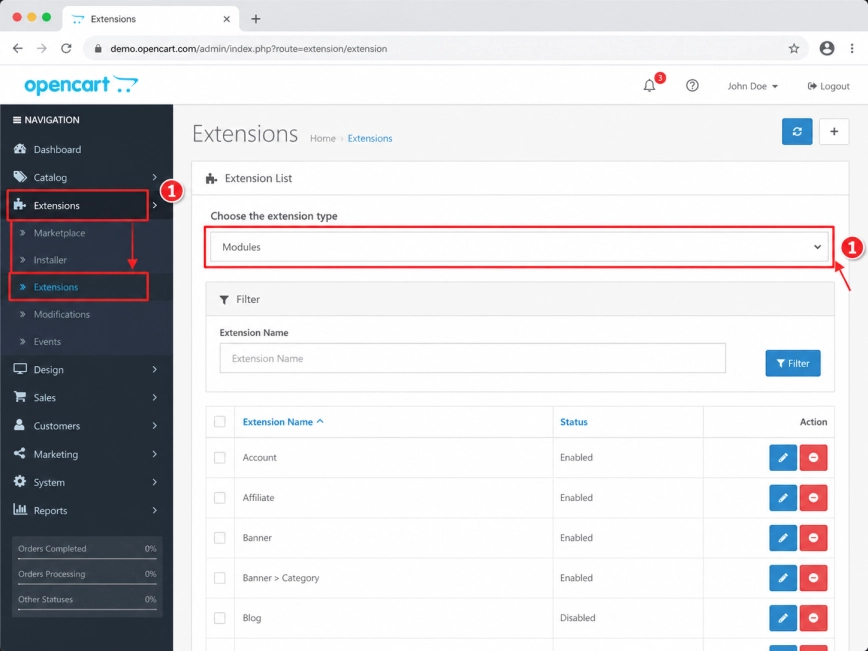
Log in to your OpenCart admin dashboard. In the left sidebar, open Extensions, then click Extensions again in the submenu.
On the Extensions page, choose Modules from the extension type dropdown.
Step 1: Open the Extensions section
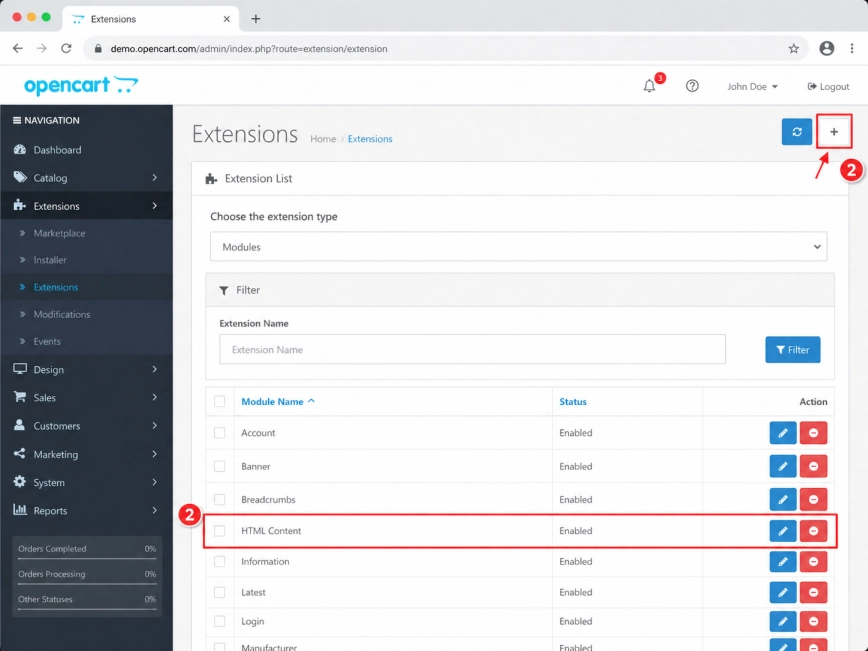
Look through the modules list and find HTML Content.
Or click Add New to create a separate module for your Wapp chat widget.
Step 2: Create a new HTML Content module
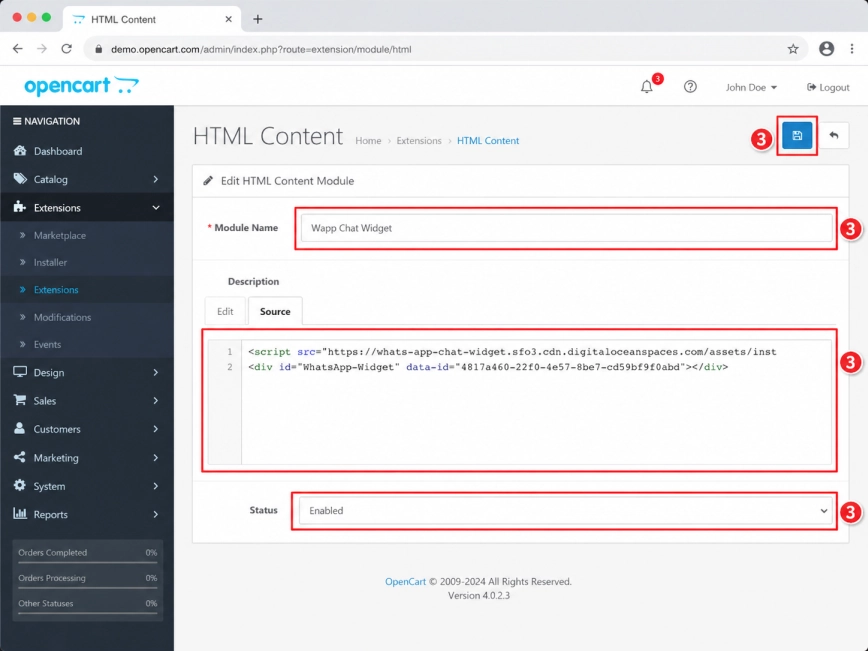
Give the module a clear name, for example Wapp Chat Widget.
In the Description field, switch to Source or Code View mode. Then paste your Wapp Chat Widget installation code into the editor.
Set Status to Enabled and click Save in the upper-right corner.
Step 3: Add your Wapp Chat Widget code
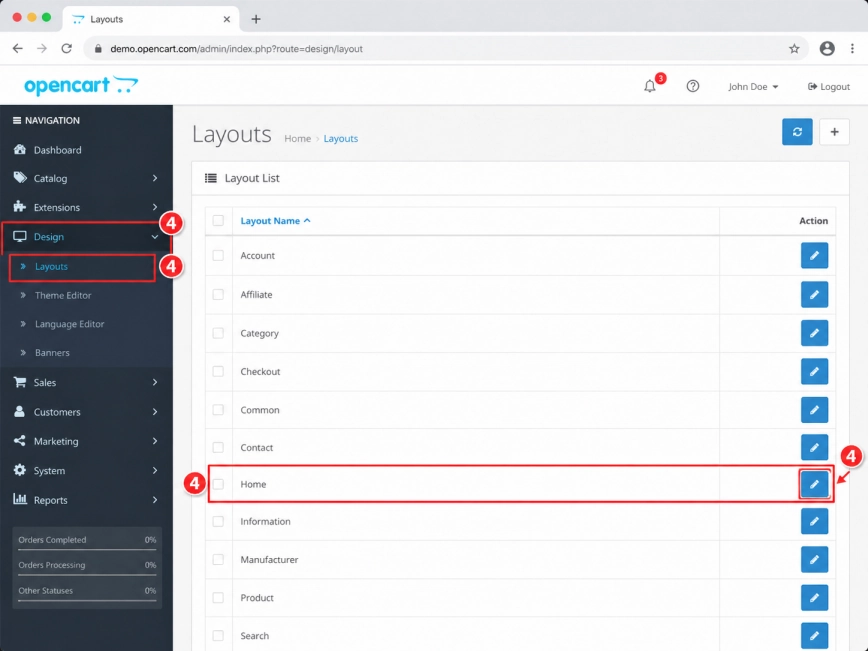
Now go to Design, then open Layouts from the left sidebar.
Find the layout where you want the WhatsApp widget to appear. For example, you can choose Home, Product, Category, or another page layout used by your store.
Click the Edit icon next to the layout you want to update.
Step 4: Choose the page layout
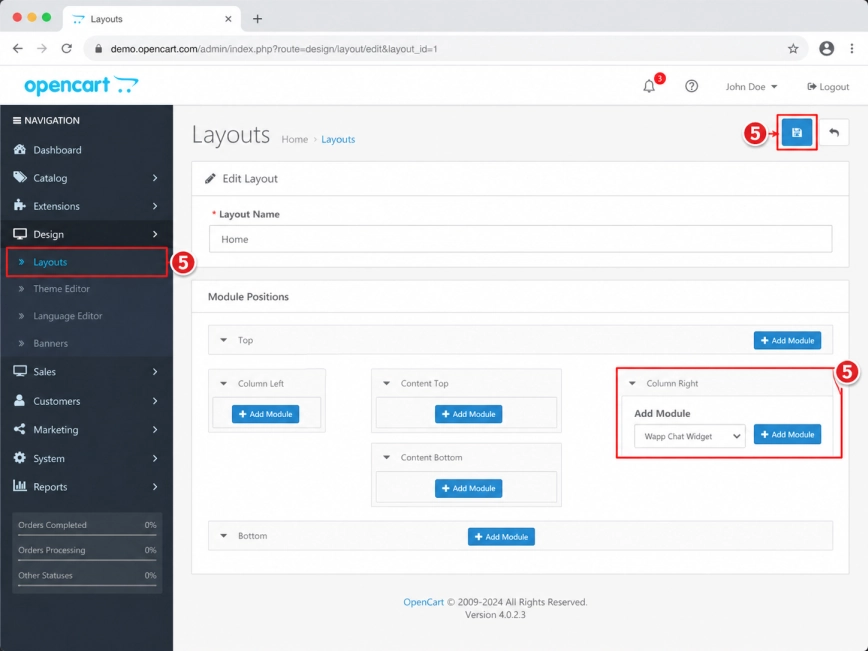
In the layout editor, choose the position where the widget module should be added.
Click Add Module, select Wapp Chat Widget from the dropdown list, and add it to the layout.
Click Save. The WhatsApp widget should now appear on the selected OpenCart page.
Step 5: Add the widget module to the page
Install to the All pages
Add Your Widget to All Pages
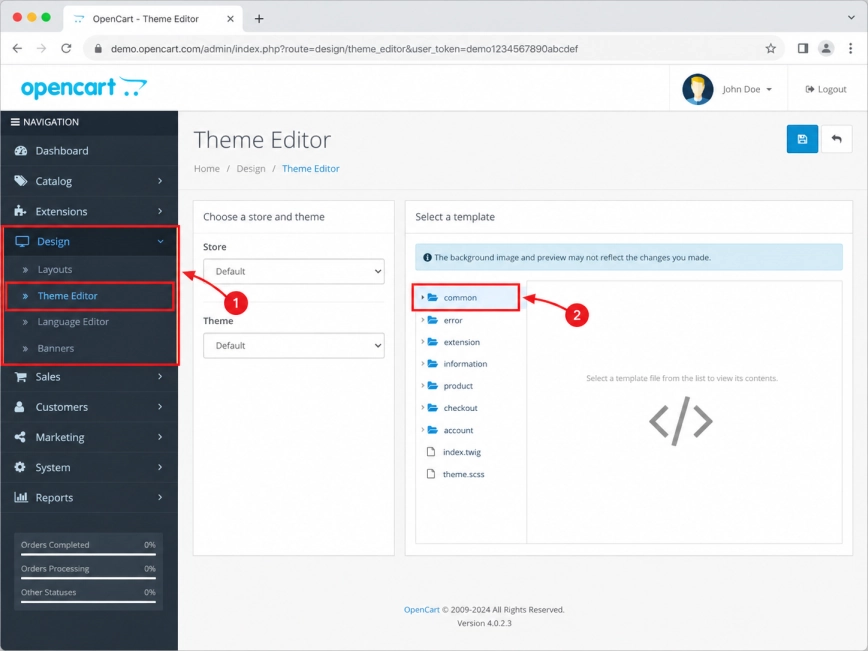
Log in to your OpenCart admin dashboard. In the left sidebar, open Design, then click Theme Editor.
In the template area, select the common folder.
Step 1: Open the Theme Editor
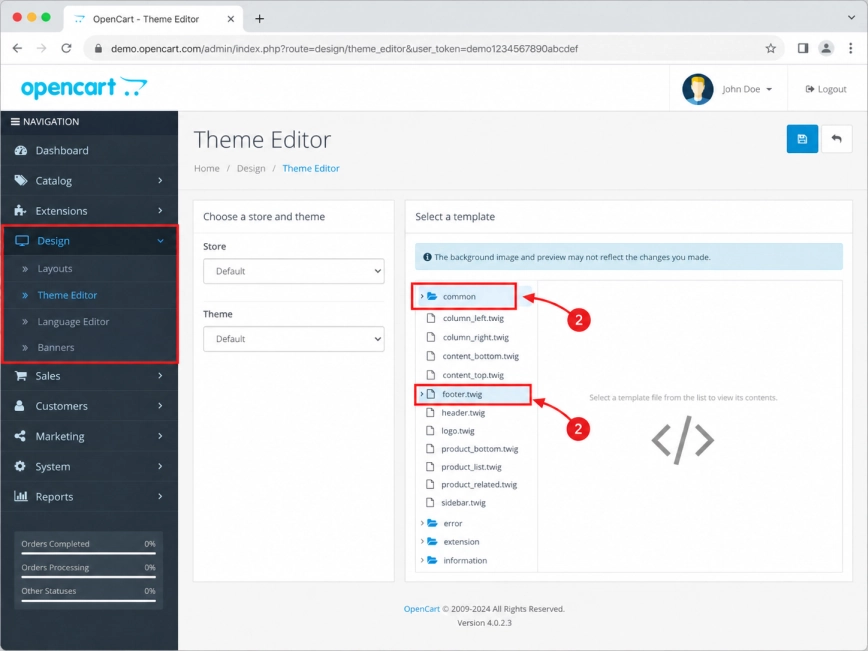
Inside the common folder, find and open footer.twig.
This file is a good place for a floating WhatsApp widget because it is usually loaded across the whole OpenCart store.
Step 2: Open the footer.twig file
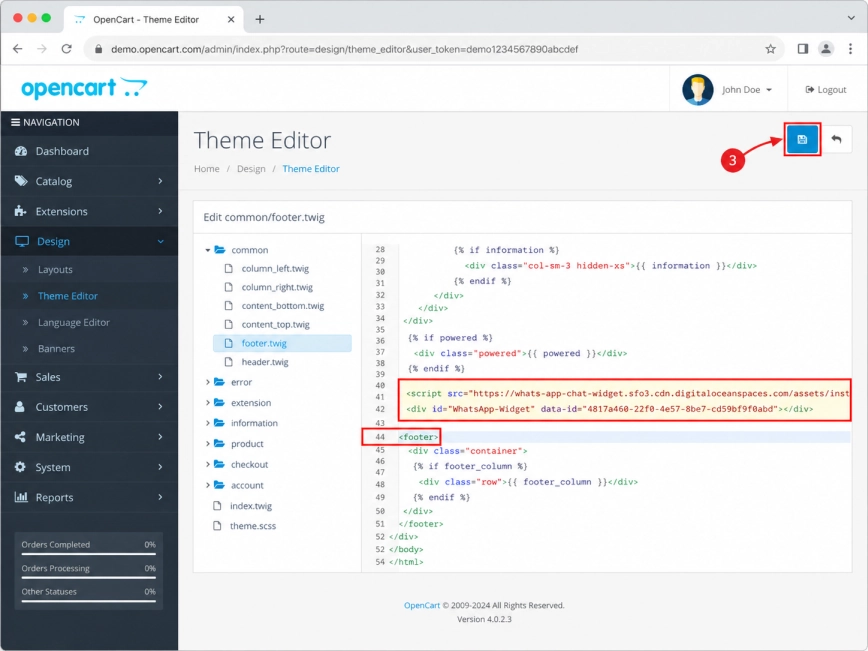
Paste your Wapp Chat Widget installation code into the footer.twig file.
Place the code before the opening <footer> tag, so the widget can load globally without being tied to one specific page block.
After that, click Save in the upper-right corner.
Step 3: Insert the Wapp Chat Widget code
Open your OpenCart store in a new browser tab and refresh the page.
The WhatsApp widget should now appear across your website.
If the widget does not show up right away, clear the OpenCart cache and your browser cache, then check the site again.
Step 4: Check your website
You're done - the Wapp Chat Widget is now connected to your OpenCart store.
Visitors can now start a WhatsApp conversation with you directly from the page where you placed the widget.
If you installed it through footer.twig, the chat button will be available across your store, so customers can reach you while browsing products, categories, or other pages.
Need help with setup or customization? Contact us and our team will help you get everything working properly.
support@wapp-chat-widget.com